2.5GbE Networking for Homelabs: The Practical Decision Guide
The networking upgrade decision in a homelab usually comes down to one question: is gigabit actually limiting you, or does it just feel like it should be? Spending $100 on a 2.5GbE upgrade is cheap, but spending $100 on something you don't need is still wasted money. This guide helps you figure out whether 2.5GbE is the right move for your setup, how to test your current bottlenecks, and how to validate the upgrade once it's in place.
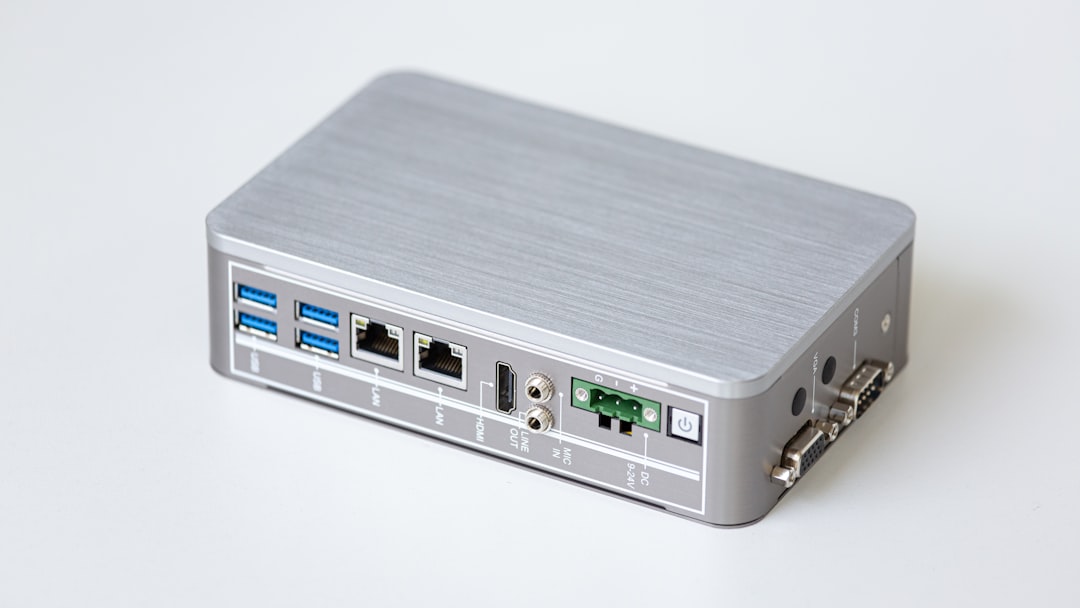
Photo by Veit Hammer on Unsplash

Is Gigabit Actually Your Bottleneck?
Before buying anything, measure what you have. Most homelabbers assume the network is the bottleneck because it sounds logical, but the reality is often different.
Step 1: Test Raw Network Speed
Install iperf3 on two machines connected to the same switch and run a baseline test:
# On the server side
iperf3 -s

# On the client side
iperf3 -c 192.168.1.50 -t 30 -P 4
The -P 4 flag uses four parallel streams, which gives you a more realistic picture of what the link can do. On a healthy gigabit connection, you should see roughly 940 Mbits/sec (about 112 MB/s). If you're seeing significantly less, fix that first -- a network upgrade won't help if your existing link is underperforming due to bad cables or driver issues.
Step 2: Test Storage Speed
SSH into your NAS or file server and measure raw disk throughput:
# Sequential write (bypasses filesystem cache)
dd if=/dev/zero of=/tmp/testfile bs=1M count=1024 oflag=direct

# Sequential read
dd if=/tmp/testfile of=/dev/null bs=1M iflag=direct
If your storage can't exceed 112 MB/s (gigabit ceiling), a faster network won't help. A single HDD tops out at 150-200 MB/s sequential, so a single-disk NAS won't fully benefit from 2.5GbE. You need a RAID array or SSD storage to saturate the faster link.
Step 3: Measure Real Workloads
The most honest test is timing a real task:
# Time a large file copy
time rsync -av --progress /mnt/nas/vm-backups/large-backup.tar.gz /local/destination/

# Calculate throughput
# file_size_MB / seconds = MB/s
If your file copies consistently hit 108-112 MB/s, you're hitting the gigabit ceiling and would benefit from 2.5GbE. If they're slower, your bottleneck is elsewhere.
The 2.5GbE vs 10GbE Decision
This is where most people overthink things. Here's the practical breakdown:
| Factor | 2.5GbE | 10GbE |
|---|---|---|
| Switch cost (8-port) | $60-150 | $300-600 |
| NIC cost | $15-30 | $40-80 (SFP+) |
| Cabling | Existing Cat5e | Cat6a or fiber |
| Power per port | ~1.5W | ~3-5W |
| Real throughput | ~280 MB/s | ~1,100 MB/s |
| Noise | Fanless switches available | Most switches have fans |
Choose 2.5GbE if: your workloads are NAS access, VM backups, media streaming, and general file transfers. The 2.5x improvement over gigabit handles these comfortably, and you keep your existing cabling.
Choose 10GbE if: you're running a multi-node Proxmox cluster with frequent live migrations, doing heavy iSCSI/NFS storage over the network, or your NAS has NVMe-backed storage that can actually push beyond 300 MB/s sustained.
Skip both if: your NAS has a single HDD, your primary use is internet access (limited by ISP speed), or your largest regular transfer is under 10GB.
Recommended Gear
Switches
For most homelabs, an unmanaged 2.5GbE switch is all you need. If you use VLANs, you need managed.
Budget unmanaged (5-8 ports): QNAP QSW-1105-5T ($60-70) or TRENDnet TEG-S380 ($70-80). Both are fanless and plug-and-play. They auto-negotiate, so you can mix 1GbE and 2.5GbE devices on the same switch.
Managed with mixed speeds: TRENDnet TEG-30284 ($170-180) gives you 24x 1GbE + 4x 2.5GbE + 4x 10GbE SFP+. This is the "transitional" switch -- your core infrastructure gets 2.5GbE while everything else stays on gigabit, with SFP+ ports for future 10GbE expansion.
NICs
PCIe (best performance): Any Realtek RTL8125B-based card ($15-25). Fully supported in Linux kernels 5.9+ via the r8169 driver. Intel I225-V cards ($25-40) are also solid, but verify revision B3 or later to avoid early silicon bugs.
USB adapters (most flexible): Realtek RTL8156B-based USB 3.0 adapters from Cable Matters or UGREEN ($15-25). Good for laptops and mini PCs without free PCIe slots. Slightly higher CPU overhead than PCIe, but negligible for most workloads.
Cables
Existing Cat5e works for 2.5GbE at the full 100-meter spec distance. That's the whole point of the 802.3bz standard. If your cables are already in the wall, don't touch them. For new patch cables in your rack, Cat6 is marginally better and costs the same, but Cat5e is perfectly fine.
Want more networking guides? Get guides like this in your inbox — HomeLab Starter delivers one free deep-dive every week.
Performance Validation
After upgrading, verify everything works correctly.
Link Verification
# Check negotiated speed
ethtool enp3s0 | grep Speed
# Expected: Speed: 2500Mb/s

# Check for errors (run this after a few hours of use)
ethtool -S enp3s0 | grep -E 'err|drop|crc'
# All values should be 0 or very low
Throughput Benchmark
# Single-stream TCP test
iperf3 -c server-ip -t 30
# Expected: ~2.35 Gbits/sec

# Multi-stream test (more realistic for typical workloads)
iperf3 -c server-ip -t 30 -P 4
# Expected: ~2.35 Gbits/sec aggregate

# UDP test (useful for checking link quality)
iperf3 -c server-ip -t 30 -u -b 2.5G
# Watch for packet loss percentage -- should be < 0.1%
Real-World Validation
# Large file copy over SMB
time cp /mnt/nas-share/test-10gb-file /tmp/
# 2.5GbE with SSD storage: ~36 seconds (280 MB/s)
# 1GbE for comparison: ~90 seconds (112 MB/s)

# Proxmox VM migration timing
# 8GB RAM VM via 2.5GbE: ~28 seconds
# Same VM via 1GbE: ~70 seconds
Common Issues and Fixes
Link negotiates at 1Gbps: Both ends must support 2.5GbE. Check that you're connected to a 2.5GbE port on the switch (some managed switches have mixed port speeds). Also try a different cable -- damaged pairs can force fallback to a lower speed.
Energy Efficient Ethernet (EEE) causing packet loss: Some Realtek controllers have issues with EEE at 2.5GbE speeds. Disable it:
sudo ethtool --set-eee enp3s0 eee off
# Make permanent via /etc/network/interfaces or NetworkManager
USB adapter drops connection under sustained load: Connect directly to a motherboard USB 3.0 port, not through a hub. Check dmesg for USB reset messages. If the issue persists, a PCIe card is a more reliable solution.
Performance varies between machines: Run iperf3 between every pair of devices to isolate which link is underperforming. A bad cable on one run can make the entire network seem slow if that run is in your critical path.
The Upgrade Path
Start small. Buy a 5-port unmanaged 2.5GbE switch and connect only your NAS, primary server, and workstation. Run your existing gigabit switch alongside it for everything else. If the improvement is meaningful for your workloads, expand from there. If not, you've only spent $60 and you can sell the switch for half that on eBay.
The 2.5GbE sweet spot won't last forever -- 10GbE gear prices are dropping every year. But today, for most homelabs, 2.5GbE delivers the best bang-for-buck networking upgrade available.