Network Switches for Your Homelab: Managed, Unmanaged, and Layer 3
Your homelab switch is the one piece of infrastructure that touches everything. Every server, every VM, every IoT device, every wireless access point — they all talk through the switch. Getting the right one (and knowing how to configure it) makes a massive difference in your homelab's capability and reliability.
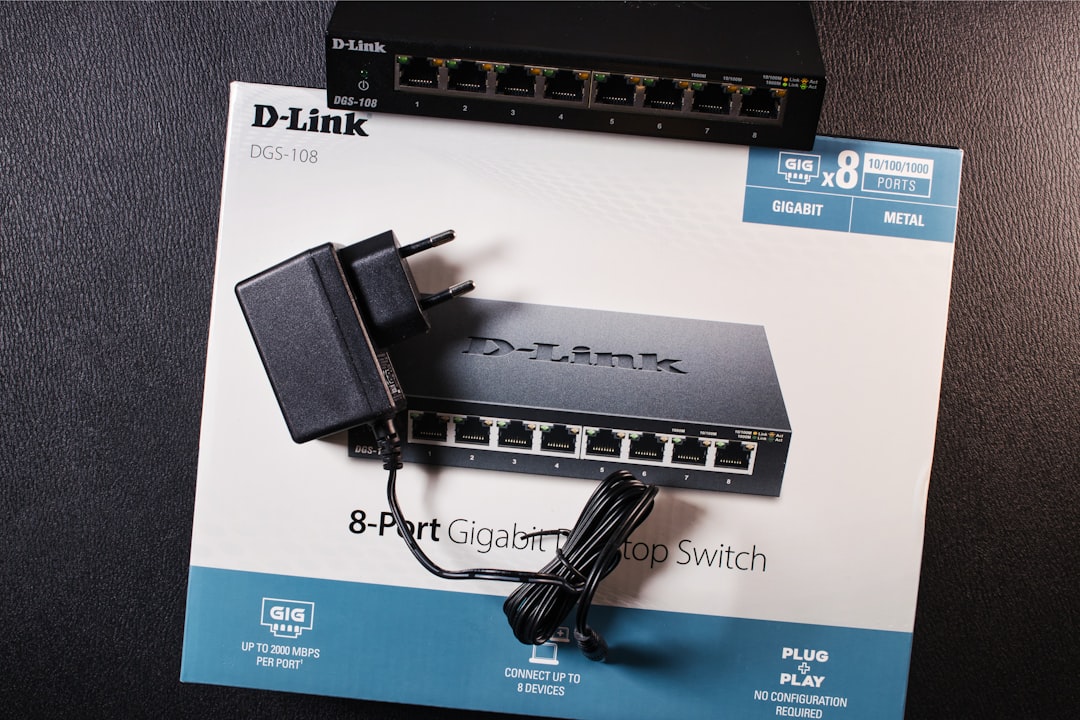
Photo by Gabriel Vasiliu on Unsplash
But the world of network switches is confusing. Unmanaged, smart-managed, fully managed, Layer 2, Layer 3, PoE, PoE+, PoE++, SFP, SFP+, 10GbE — it's a lot of acronyms. Let's break it all down and figure out exactly what you need.
Switch Types Explained
Unmanaged Switches
An unmanaged switch is a plug-and-play box. You connect cables, and it forwards traffic. No configuration, no management interface, no VLANs. It just works.
When to use: You have a few devices that all need to be on the same network and you don't care about VLANs or traffic separation. Think of it as a multi-port ethernet splitter.
Pros:
- Dead simple — zero configuration
- Cheap — $15-50 for a good one
- Reliable — nothing to misconfigure
- Silent — many are fanless
Cons:
- No VLANs
- No traffic monitoring
- No port mirroring
- No QoS (Quality of Service)
- All traffic is on one broadcast domain
Smart/Web-Managed Switches
Smart-managed switches (sometimes called "easy-managed" or "web-managed") offer a web interface with basic management features. They support VLANs, sometimes QoS, and basic monitoring, but don't have the full feature set of a truly managed switch.
When to use: You want VLANs to separate your homelab traffic but don't need advanced features like OSPF, ACLs, or SNMP monitoring.
Pros:
- VLAN support
- Web-based management
- Usually affordable ($50-150)
- Often fanless
- Good enough for 90% of homelabs
Cons:
- Limited CLI access (or none)
- Basic monitoring only
- Fewer features than fully managed
- Firmware updates can be infrequent
Fully Managed Switches
Fully managed switches give you complete control. Full CLI access (via SSH/Telnet), SNMP monitoring, advanced VLANs, ACLs (access control lists), QoS, port mirroring, LACP (link aggregation), spanning tree, and more.
When to use: You want to learn enterprise networking, need advanced features, or are running a complex homelab with many VLANs and services.
Pros:
- Full feature set
- CLI and web management
- SNMP for monitoring
- ACLs for security
- LACP for link aggregation
- Spanning tree for redundancy
Cons:
- More expensive ($100-500+)
- Steeper learning curve
- Often have fans (louder)
- Can be overkill for simple setups
Layer 3 Switches
A Layer 3 switch can route between VLANs without needing a separate router. Instead of sending inter-VLAN traffic to your router (which creates a bottleneck), the switch handles it at wire speed.
When to use: You have multiple VLANs and significant inter-VLAN traffic. For example, your servers on VLAN 10 talk to your NAS on VLAN 20 frequently.
Pros:
- Wire-speed inter-VLAN routing
- Reduces load on your router
- Static and dynamic routing (OSPF, etc.)
- All the features of a managed switch
Cons:
- Most expensive option ($200-800+)
- Complexity — you're now managing routing on the switch
- Often power-hungry and noisy
- Overkill if your router handles inter-VLAN routing fine
Decision Matrix
| Need | Switch Type | Price Range |
|---|---|---|
| Just connect things | Unmanaged | $15-50 |
| Basic VLANs | Smart-managed | $50-150 |
| Learning networking / complex setup | Fully managed | $100-500 |
| Heavy inter-VLAN traffic | Layer 3 | $200-800 |
| PoE for APs/cameras | Managed PoE | $100-400 |
| 10GbE for storage/VMs | 10GbE switch | $150-600 |
When You Actually Need a Managed Switch
Let me save you some money: if you have fewer than 10 devices and they're all on the same network, you don't need a managed switch. An unmanaged 8-port gigabit switch for $20 will serve you perfectly.
You need a managed switch when:
You want VLANs. This is the most common reason. Separating your IoT devices, servers, management interfaces, and guest network onto different VLANs is a major security improvement.
You're running PoE devices. Access points, cameras, and some other devices are powered over Ethernet. PoE switches let you monitor and control power per-port.
You want traffic visibility. Port mirroring, SNMP counters, and traffic statistics help you understand what's happening on your network.
You need link aggregation (LACP). Bonding multiple ports together for more bandwidth to your NAS or server.
You're learning networking. A managed switch is a fantastic learning tool. VLANs, spanning tree, ACLs — this is real enterprise networking on your desk.
VLAN Configuration on Managed Switches
VLANs are the killer feature that makes managed switches worthwhile for homelabbers. Here's how they work and how to set them up.
VLAN Concepts
A VLAN (Virtual LAN) is a logical network that exists within a physical network. Devices on the same VLAN can talk to each other. Devices on different VLANs can't — unless a router connects them.
Key concepts:
- Access port: Belongs to exactly one VLAN. The device connected to it doesn't know about VLANs. Your servers, PCs, and IoT devices connect to access ports.
- Trunk port: Carries traffic for multiple VLANs, tagged with 802.1Q headers. Your switch-to-switch and switch-to-router connections are trunks.
- Native VLAN: The VLAN used for untagged traffic on a trunk port. Usually VLAN 1 by default (change this for security).
- PVID (Port VLAN ID): The VLAN assigned to untagged traffic arriving on a port.
A Typical Homelab VLAN Layout
| VLAN ID | Name | Subnet | Purpose |
|---|---|---|---|
| 1 | Default | (unused) | Default VLAN — don't use it |
| 10 | Management | 10.0.10.0/24 | Switch management, IPMI, iLO |
| 20 | Servers | 10.0.20.0/24 | Proxmox, Docker hosts, VMs |
| 30 | Storage | 10.0.30.0/24 | NAS, iSCSI, NFS |
| 40 | IoT | 10.0.40.0/24 | Smart home devices |
| 50 | Trusted | 10.0.50.0/24 | PCs, laptops, phones |
| 60 | Guest | 10.0.60.0/24 | Guest WiFi |
| 99 | Native | 10.0.99.0/24 | Native VLAN (trunk untagged) |
Configuring VLANs — CLI Examples
Here's how to configure VLANs on common managed switches. The CLI varies by vendor but the concepts are the same.
Cisco / Cisco-like CLI (many managed switches use this syntax)
! Enter configuration mode
enable
configure terminal

! Create VLANs
vlan 10
  name Management
  exit
vlan 20
  name Servers
  exit
vlan 30
  name Storage
  exit
vlan 40
  name IoT
  exit
vlan 50
  name Trusted
  exit

! Configure an access port (connecting to a server)
interface GigabitEthernet 0/1
  description "Proxmox Node 1"
  switchport mode access
  switchport access vlan 20
  spanning-tree portfast
  exit

! Configure a trunk port (connecting to another switch or router)
interface GigabitEthernet 0/24
  description "Uplink to Router"
  switchport mode trunk
  switchport trunk allowed vlan 10,20,30,40,50
  switchport trunk native vlan 99
  exit

! Configure a PoE access port (for an access point)
interface GigabitEthernet 0/12
  description "Living Room AP"
  switchport mode access
  switchport access vlan 50
  spanning-tree portfast
  power inline auto
  exit

! Save configuration
write memory
TP-Link Omada CLI
# TP-Link managed switches use a slightly different syntax
enable
configure

# Create VLANs
vlan 10
  name Management
  exit
vlan 20
  name Servers
  exit

# Configure an access port
interface gigabitEthernet 1/0/1
  switchport mode access
  switchport access vlan 20
  exit

# Configure a trunk port
interface gigabitEthernet 1/0/24
  switchport mode trunk
  switchport trunk allowed vlan all
  exit

# Save
copy running-config startup-config
Web GUI Configuration
Most smart-managed switches only have a web interface. The process is typically:
- Go to VLAN > 802.1Q VLAN
- Create VLANs with IDs and names
- Go to VLAN > Port Settings
- Set each port as "Access" or "Trunk"
- Assign each access port to a VLAN
- Configure trunk ports with allowed VLANs
The exact steps vary by manufacturer, but the concepts are identical.
Testing Your VLAN Configuration
After configuring VLANs, verify they work:
# On a device connected to VLAN 20 (Servers):

# Should work — ping another device on VLAN 20
ping 10.0.20.2

# Should fail (no inter-VLAN routing yet) — ping a device on VLAN 30
ping 10.0.30.1

# Check your VLAN tag (Linux)
ip -d link show eth0
# Look for "vlan protocol 802.1Q" if tagged

# If using tagged VLANs on a Linux host:
ip link add link eth0 name eth0.20 type vlan id 20
ip addr add 10.0.20.10/24 dev eth0.20
ip link set eth0.20 up
Want more networking guides? Get guides like this in your inbox — HomeLab Starter delivers one free deep-dive every week.
PoE: Powering Devices Over Ethernet
Power over Ethernet (PoE) lets you power devices through the network cable. No separate power supply needed. This is how most wireless access points, IP cameras, VoIP phones, and some single-board computers get their power.
PoE Standards
| Standard | IEEE | Max Power (per port) | Voltage | Common Uses |
|---|---|---|---|---|
| PoE | 802.3af | 15.4W | 48V | Access points, IP phones |
| PoE+ | 802.3at | 30W | 48V | High-power APs, cameras |
| PoE++ (Type 3) | 802.3bt | 60W | 48V | PTZ cameras, thin clients |
| PoE++ (Type 4) | 802.3bt | 90W | 48V | Laptops, digital signage |
For most homelabs, PoE+ (802.3at, 30W per port) is plenty. Access points typically draw 10-15W, and IP cameras draw 5-15W.
PoE Budget
Every PoE switch has a total power budget — the maximum watts it can deliver across all ports combined. This is often less than the theoretical maximum.
For example, an 8-port PoE+ switch might have a 120W total budget. With 8 ports capable of 30W each, that's 240W theoretical — but you only get 120W total. If each AP draws 15W, you can power 8 APs. If each camera draws 25W, you can only power 4.
Always check the total PoE budget, not just the per-port rating.
Total PoE budget: 120W
APs: 3 × 15W = 45W
Cameras: 2 × 12W = 24W
Total: 69W (57% of budget — comfortable headroom)
PoE Tips
- Use Cat5e or better cable for PoE. Cat5 works but has higher resistance and wastes power as heat.
- Keep cable runs under 100m. PoE power decreases with distance.
- Get more PoE budget than you think you need. Devices draw more during boot and firmware updates.
- PoE injectors are an alternative. If you only need PoE for 1-2 devices, a PoE injector ($15-30) is cheaper than a PoE switch.
10GbE: When Gigabit Isn't Enough
If you're doing any of the following, you'll feel the gigabit bottleneck:
- VM storage over the network (iSCSI, NFS datastores)
- Large file transfers to/from a NAS
- Video editing with footage stored on the NAS
- Running Ceph or other distributed storage
- Multiple simultaneous users streaming/accessing the NAS
10GbE Options for Homelabs
The good news: 10GbE has gotten dramatically cheaper. Here are your options:
10GbE Switch Options
| Switch | Ports | Type | PoE | Noise | Price Range |
|---|---|---|---|---|---|
| MikroTik CRS305-1G-4S+ | 4× SFP+, 1× 1G | Managed | No | Fanless | $130-160 |
| MikroTik CRS309-1G-8S+ | 8× SFP+, 1× 1G | Managed | No | Fan (quiet) | $250-300 |
| MikroTik CRS312-4C+8XG | 8× 10G RJ45, 4× combo | Managed | No | Fan | $350-400 |
| TP-Link TL-SX3008F | 8× SFP+ | Managed | No | Fanless | $200-250 |
| QNAP QSW-M2108R-2C | 8× 2.5G, 2× 10G combo | Managed | No | Fanless | $200-250 |
| Ubiquiti USW-Aggregation | 8× SFP+ | Managed (UniFi) | No | Fanless | $300-350 |
SFP+ vs. 10GBase-T (RJ45)
| Feature | SFP+ | 10GBase-T (RJ45) |
|---|---|---|
| Cable type | DAC cables or fiber | Cat6a/Cat7 Ethernet |
| Max distance (copper) | 5m (DAC) | 100m |
| Max distance (fiber) | 300m+ (MMF), 10km+ (SMF) | N/A |
| Power per port | ~1W | ~5-8W |
| Heat | Low | High |
| Latency | Lower | Higher |
| Switch cost | Lower | Higher |
| Transceiver cost | $10-30 each | Built into switch |
| Best for | Short runs, rack setups | Existing Cat6a wiring |
My recommendation: If your servers and NAS are in the same rack or within 5 meters, use SFP+ with DAC (Direct Attach Copper) cables. DAC cables are $10-20 and give you 10Gbps with minimal power and heat. If you need longer runs or want to use existing ethernet cables, 10GBase-T is the way to go.
DAC Cable Setup
# No driver or configuration needed for DAC cables
# Just plug them into the SFP+ ports on your switch and NIC

# Verify 10G link on Linux
ethtool eth1 | grep Speed
# Speed: 10000Mb/s

# Check for errors (common with cheap DACs)
ethtool -S eth1 | grep -i error
# All should be 0

# If you're getting errors, try a different DAC cable or check compatibility
10GbE NIC Recommendations
| NIC | Interface | Ports | Price Range | Notes |
|---|---|---|---|---|
| Mellanox ConnectX-3 (used) | SFP+ | 2 | $15-30 | Best value, Linux support is excellent |
| Intel X520-DA2 (used) | SFP+ | 2 | $20-40 | Very popular, great compatibility |
| Intel X540-T2 (used) | 10GBase-T | 2 | $30-60 | RJ45, runs warm |
| Mellanox ConnectX-4 (used) | SFP+ | 2 | $40-80 | 25GbE capable, future-proof |
| Intel X710-DA2 (new) | SFP+ | 2 | $100-150 | New, full warranty |
Used enterprise NICs from eBay are the homelab sweet spot. A Mellanox ConnectX-3 for $20 and a DAC cable for $15 gives you 10Gbps for $35 total per device.
# Install a Mellanox NIC on Linux (usually auto-detected)
lspci | grep -i mellanox
# 03:00.0 Ethernet controller: Mellanox Technologies MT27500 Family [ConnectX-3]

# Check the driver
ethtool -i eth1
# driver: mlx4_en

# Configure a static IP on the 10G interface
ip addr add 10.0.30.10/24 dev eth1
ip link set eth1 up

# For persistent config (systemd-networkd):
# /etc/systemd/network/10-10gbe.network
[Match]
Name=eth1

[Network]
Address=10.0.30.10/24
DHCP=no
Fanless and Quiet Switches for Home Use
If your network equipment is in a living space (not a dedicated server room), noise matters. Here are switches that won't drive you crazy:
Fanless Gigabit Switches
| Switch | Ports | Managed | PoE | Price Range |
|---|---|---|---|---|
| Netgear GS108E | 8× 1G | Smart (web) | No | $30-40 |
| Netgear GS308EP | 8× 1G | Smart (web) | PoE+ (62W) | $70-90 |
| TP-Link TL-SG108E | 8× 1G | Smart (web) | No | $25-35 |
| TP-Link TL-SG2008P | 8× 1G | Smart (Omada) | PoE+ (62W) | $70-90 |
| Ubiquiti USW-Lite-8-PoE | 8× 1G | Managed (UniFi) | PoE (52W) | $100-120 |
| Ubiquiti USW-Lite-16-PoE | 16× 1G | Managed (UniFi) | PoE (45W) | $130-150 |
Fanless 2.5G/10G Switches
| Switch | Ports | Managed | Price Range |
|---|---|---|---|
| QNAP QSW-1105-5T | 5× 2.5G | Unmanaged | $80-100 |
| MikroTik CRS305-1G-4S+ | 4× SFP+, 1× 1G | Managed | $130-160 |
| TP-Link TL-SX3008F | 8× SFP+ | Managed | $200-250 |
| QNAP QSW-M2108R-2C | 8× 2.5G, 2× 10G combo | Managed | $200-250 |
Specific Recommendations by Budget
Budget Tier ($30-80): "Just Getting Started"
Best overall: Netgear GS108E (~$35)
- 8 ports, gigabit, smart-managed
- VLAN support, QoS, port mirroring
- Fanless, metal case, reliable
- Perfect for learning VLANs without breaking the bank
If you need PoE: Netgear GS308EP (~$80)
- Same as above but with PoE+ on all 8 ports
- 62W total PoE budget — enough for 4 access points
Unmanaged basic: TP-Link TL-SG108 (~$20)
- 8 ports, gigabit, metal case, fanless
- If you truly just need to connect things
Mid Tier ($100-250): "Growing Homelab"
Best overall: Ubiquiti USW-Lite-16-PoE (~$140)
- 16 ports, gigabit, 8× PoE, managed via UniFi
- Fanless, great web interface
- Integrates perfectly if you have UniFi APs
Without UniFi ecosystem: TP-Link TL-SG3428 (~$200)
- 24× 1G, 4× SFP, fully managed
- Full CLI access, SNMP, ACLs
- Great for learning enterprise networking
10GbE entry: MikroTik CRS305-1G-4S+ (~$150)
- 4× SFP+ ports for 10GbE connections
- Fanless, tiny, efficient
- Connect your servers and NAS at 10G for cheap
High Tier ($250-600): "Serious Homelab"
Best 10GbE: MikroTik CRS309-1G-8S+ (~$270)
- 8× SFP+ ports
- Quiet fan (replaceable)
- RouterOS and SwOS dual boot
- Enough 10G ports for a full rack
Feature-rich: Ubiquiti USW-Pro-24-PoE (~$500)
- 24× 1G PoE+, 2× SFP+, managed
- Layer 3 switching
- 400W PoE budget
- Everything you'd need in one switch
Best value used: Look for used enterprise gear on eBay:
- HP ProCurve 2530-24G (~$50 used) — 24-port fully managed, fanless model available
- Cisco Catalyst 2960-S (~$40-80 used) — Classic fully managed switch
- Aruba 2530-24G (~$60 used) — Essentially HP ProCurve with a different label
Used enterprise switches are incredible value. A $500 switch from 5 years ago sells for $50-80 on eBay, and it's still a fully managed, enterprise-quality switch.
Trunk Ports and LACP
Trunk Ports
Trunk ports carry traffic for multiple VLANs between switches, or between a switch and a router. Each frame on a trunk port is tagged with its VLAN ID (using 802.1Q).
Switch 1                              Switch 2
+--------+    trunk (VLANs 10,20,30)  +--------+
| Port 24|============================| Port 24|
+--------+                            +--------+

Port 24 carries tagged frames for all three VLANs.
Devices on VLAN 10 on Switch 1 can reach devices on VLAN 10 on Switch 2.
LACP (Link Aggregation)
LACP (802.3ad) bonds multiple physical links into a single logical link for more bandwidth and redundancy. Two 1G links bonded via LACP give you 2Gbps aggregate bandwidth (though individual connections are still limited to 1Gbps — the aggregate benefit comes from load balancing across connections).
Server                              Switch
+------+     bond0 (LACP)          +------+
| eth0 |============================| P1   |
| eth1 |============================| P2   |
+------+                           +------+

Two 1G links = 2Gbps aggregate bandwidth
Configuring LACP on the Switch
! Cisco-like CLI
interface range GigabitEthernet 0/1 - 2
  channel-group 1 mode active
  exit

interface port-channel 1
  switchport mode trunk
  switchport trunk allowed vlan 20,30
  exit
Configuring LACP on Linux
# Install bonding tools
sudo apt install ifenslave

# Load the bonding module
sudo modprobe bonding

# Configure with systemd-networkd:
# /etc/systemd/network/10-bond0.netdev
[NetDev]
Name=bond0
Kind=bond

[Bond]
Mode=802.3ad
TransmitHashPolicy=layer3+4
MIIMonitorSec=100ms
LACPTransmitRate=fast
# /etc/systemd/network/20-eth0.network
[Match]
Name=eth0

[Network]
Bond=bond0
# /etc/systemd/network/20-eth1.network
[Match]
Name=eth1

[Network]
Bond=bond0
# /etc/systemd/network/30-bond0.network
[Match]
Name=bond0

[Network]
Address=10.0.20.10/24
Gateway=10.0.20.1
DNS=10.0.10.1
# Apply the configuration
sudo systemctl restart systemd-networkd

# Verify the bond
cat /proc/net/bonding/bond0
# Look for: "802.3ad info" and both interfaces listed as active
Switch Stacking Basics
Switch stacking connects multiple physical switches into a single logical switch. Instead of managing 3 switches separately, you manage them as one unit with one IP address, one configuration, and one management plane.
When You Need Stacking
Most homelabs don't need stacking. You'd consider it if you:
- Have multiple switches and want unified management
- Need more ports than a single switch provides
- Want redundant switch paths without spanning tree complexity
Stacking Options
Vendor-specific stacking (Cisco StackWise, Aruba VSF, etc.) uses dedicated stacking cables and is the "real" solution. This requires switches from the same family.
Virtual stacking (MLAG/MC-LAG) uses regular network links to create a logical pair of switches. This is supported by more switches, including some prosumer models.
For most homelabs, simply connecting switches with trunk ports and running spanning tree is sufficient. True stacking is an enterprise feature that's nice to learn but rarely necessary at home.
Putting It All Together
Here's a practical example: setting up a complete homelab network with a managed switch.
Network Design
Internet
  │
  ▼
[pfSense Router]
  │ VLAN trunk (all VLANs)
  ▼
[Managed Switch — 24 ports]
  ├── Port 1:  pfSense (trunk: VLAN 10,20,30,40,50,60)
  ├── Port 2:  Proxmox Node 1 (access: VLAN 20)
  ├── Port 3:  Proxmox Node 2 (access: VLAN 20)
  ├── Port 4:  Proxmox Node 1 — 10G (access: VLAN 30, via SFP+)
  ├── Port 5:  NAS (access: VLAN 30)
  ├── Port 6:  IPMI — Node 1 (access: VLAN 10)
  ├── Port 7:  IPMI — Node 2 (access: VLAN 10)
  ├── Port 12: WiFi AP — Living Room (trunk: VLAN 50,60)
  ├── Port 13: WiFi AP — Office (trunk: VLAN 50,60)
  ├── Port 20: Desktop PC (access: VLAN 50)
  ├── Port 21: Smart TV (access: VLAN 40)
  └── Port 24: Uplink to secondary switch (trunk: all VLANs)
Switch Configuration Summary
! Create VLANs
vlan 10
  name Management
vlan 20
  name Servers
vlan 30
  name Storage
vlan 40
  name IoT
vlan 50
  name Trusted
vlan 60
  name Guest

! Router trunk
interface GigabitEthernet 0/1
  switchport mode trunk
  switchport trunk allowed vlan 10,20,30,40,50,60
  switchport trunk native vlan 99

! Server access ports
interface range GigabitEthernet 0/2 - 3
  switchport mode access
  switchport access vlan 20
  spanning-tree portfast

! Storage access ports
interface range GigabitEthernet 0/4 - 5
  switchport mode access
  switchport access vlan 30
  spanning-tree portfast

! Management (IPMI) access ports
interface range GigabitEthernet 0/6 - 7
  switchport mode access
  switchport access vlan 10
  spanning-tree portfast

! WiFi AP trunk ports (PoE enabled)
interface range GigabitEthernet 0/12 - 13
  switchport mode trunk
  switchport trunk allowed vlan 50,60
  switchport trunk native vlan 50
  power inline auto
  spanning-tree portfast

! Desktop PC
interface GigabitEthernet 0/20
  switchport mode access
  switchport access vlan 50
  spanning-tree portfast

! Smart TV (IoT)
interface GigabitEthernet 0/21
  switchport mode access
  switchport access vlan 40
  spanning-tree portfast

! Uplink trunk
interface GigabitEthernet 0/24
  switchport mode trunk
  switchport trunk allowed vlan 10,20,30,40,50,60
  switchport trunk native vlan 99
This gives you complete network segmentation. Your IoT devices can't see your servers. Your guest WiFi is isolated. Your management interfaces are on their own VLAN. And everything is documented right in the switch configuration.
Wrapping Up
Choosing a network switch doesn't have to be overwhelming. Here's the decision process:
- How many ports do you need? Count your devices and add 30% for growth.
- Do you need VLANs? If yes, get at least a smart-managed switch.
- Do you need PoE? If you have APs or cameras, yes. Check the total PoE budget.
- Do you need 10GbE? If you're doing NFS/iSCSI storage or large transfers, yes. Start with a small SFP+ switch.
- Does noise matter? If the switch is in a living space, get a fanless model.
- What's your budget? Used enterprise gear is incredible value. A $35 Netgear GS108E handles 90% of homelab needs.
Start simple. An $80 smart-managed PoE switch plus a $150 MikroTik CRS305 SFP+ switch covers most homelab scenarios with room to grow. You can always upgrade later — and now you know exactly what you're upgrading to.