Home Assistant Energy Monitoring: Track and Reduce Your Electricity Bills
The average US household spends $1,400/year on electricity. Most people have no idea which devices are responsible for most of that cost. Home Assistant's Energy Dashboard changes that — it turns raw consumption data into actionable insights about where your money is actually going.
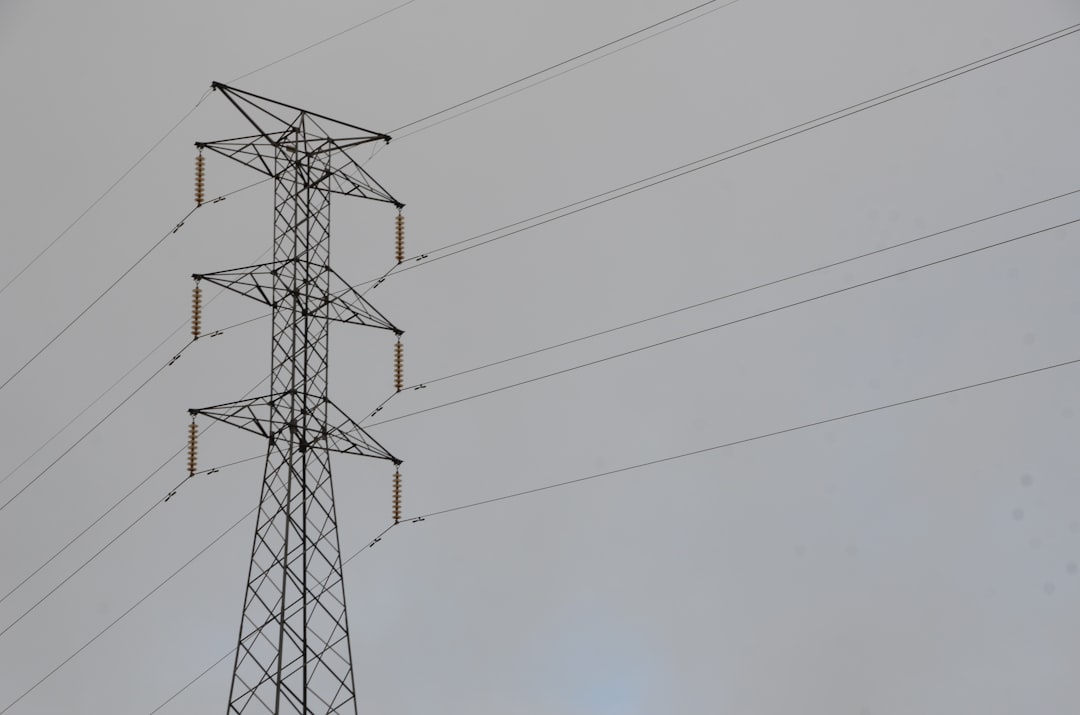
Photo by Caio Arbulu on Unsplash
The Energy Dashboard
Home Assistant has a built-in Energy Dashboard (added in 2021) that tracks:
- Grid consumption: Total electricity drawn from the utility
- Grid return: Energy exported back to the grid (if you have solar)
- Solar generation: Power produced by solar panels
- Battery charge/discharge: If you have home battery storage
- Individual device consumption: Per-device tracking with smart plugs
The dashboard shows daily, weekly, monthly, and yearly views with cost calculations once you enter your electricity rate.
Approach 1: Smart Plugs (Per-Device Monitoring)
The easiest starting point. Smart plugs with power monitoring measure consumption for individual devices.
Recommended options:
- Shelly Plug S — integrates directly with HA via local API, no cloud, ~$15
- TP-Link Kasa EP25 — reliable, good HA integration, ~$15
- IKEA TRÅDFRI Outlet — Zigbee, works with ZHA/Zigbee2MQTT, ~$15
Avoid plugs that require cloud accounts for energy data — if the vendor's cloud goes down, you lose history.
Adding to the Energy Dashboard
Once your smart plug is integrated:
- Go to Settings → Energy
- Under "Individual devices", click Add Device
- Select the power sensor entity (e.g.,
sensor.living_room_plug_power)
HA automatically integrates the wattage readings into kWh over time using the Riemann sum integration.
What to monitor first: anything that runs continuously or cycles frequently — refrigerator, old chest freezer, always-on PC, gaming console in standby, space heater.
Approach 2: Whole-Home CT Clamp Monitoring
For total household consumption without putting a smart plug on every circuit, a CT (current transformer) clamp meter measures current flowing through your main electrical wires.
Hardware options:
- Emporia Vue 2 (~$70) — 16 circuit monitoring, direct HA integration, popular choice
- IoTaWatt (~$100) — open source, local processing, excellent HA integration
- Shelly EM (~$25) — simpler 2-circuit version, good for monitoring main lines
CT clamp installation note: This goes inside your electrical panel. If you're not comfortable working around live electrical components, hire an electrician. The panel door can be opened safely while it's live for most of these installs, but the main breaker connections carry lethal voltage.
IoTaWatt Integration
IoTaWatt connects to your WiFi and exposes a local HTTP API. The Home Assistant integration is native:
- Install the IoTaWatt integration from HACS or Settings → Integrations
- Enter your IoTaWatt's local IP
- Map the circuit inputs to meaningful names
After setup, you get per-circuit sensors that feed into the Energy Dashboard.
Want more home automation guides? Get guides like this in your inbox — HomeLab Starter delivers one free deep-dive every week.
Approach 3: Smart Meter Integration
If your utility has installed a smart meter, you can often pull consumption data directly.
Emporia Energy (US): If your utility participates, the Emporia app shows your 15-minute interval data. There's an unofficial HA integration that polls this data.
P1 Port (Netherlands/Belgium): Smart meters have a P1 serial port you can connect to directly for real-time data. Slimmelezer and DSMR-P1-dongle are popular hardware options.
Utility API: Some utilities provide an API via Green Button Connect. Check your utility's website for developer access.
Setting Up the Energy Dashboard
Once you have power sensors:
- Settings → Energy → Configure
- Grid consumption: Add your total consumption sensor (from CT clamp or utility API)
- Individual devices: Add per-device smart plug sensors
- Solar: Add your solar inverter's production sensor if you have panels
- Costs: Enter your electricity rate (check your bill for the per-kWh rate)
Tariff tip: Many utilities have time-of-use (TOU) pricing — electricity costs more during peak hours (typically 4-9 PM). HA supports multiple tariff rates. Configure this to get accurate cost calculations.
Useful Automations
Once you have energy data, you can build automations:
Alert on unusually high consumption
automation:
  - alias: "High power alert"
    trigger:
      platform: numeric_state
      entity_id: sensor.whole_home_power
      above: 5000  # watts
      for: "00:10:00"
    action:
      service: notify.mobile_app
      data:
        message: "Home power usage has been above 5kW for 10 minutes"
Track monthly budget
automation:
  - alias: "Monthly electricity budget warning"
    trigger:
      platform: numeric_state
      entity_id: sensor.energy_cost_month
      above: 100  # dollars
    action:
      service: notify.mobile_app
      data:
        message: "Monthly electricity spend has exceeded $100"
Shift loads to off-peak hours
If you have a smart water heater or EV charger:
automation:
  - alias: "Water heater off-peak only"
    trigger:
      - platform: time
        at: "21:00:00"  # peak ends
    action:
      service: switch.turn_on
      entity_id: switch.water_heater
  - trigger:
      - platform: time
        at: "16:00:00"  # peak starts
    action:
      service: switch.turn_off
      entity_id: switch.water_heater
What to Expect
A few observations from typical setups:
Phantom load is real: An old gaming console in "standby" can draw 50-100W continuously — that's $60-120/year just sitting there. A smart plug with a schedule (off overnight) eliminates this.
Refrigerators vary wildly: An old refrigerator from 2005 might use 1.5-2kWh/day. A modern efficient one uses 0.5-0.8kWh/day. If you have an old fridge, this is often the single biggest efficiency win.
Space heaters are expensive: A 1500W space heater running 4 hours/day costs about $70/month at $0.13/kWh. This is often a surprise for people who use them as "just a little heat."
Vampire loads add up: Cable boxes, old TVs, desktop PCs — everything that shows a clock or responds to a remote is drawing power 24/7. Auditing these systematically with a smart plug is the best starting point.