PXE and Network Booting: Automated OS Installs for Your Home Lab
Every time you set up a new server, VM host, or repurpose old hardware, you go through the same ritual: download an ISO, write it to a USB drive, plug it into the machine, boot from USB, click through the installer, pull the USB out, repeat for the next machine. When you're building a cluster or re-deploying regularly, this gets tedious fast.
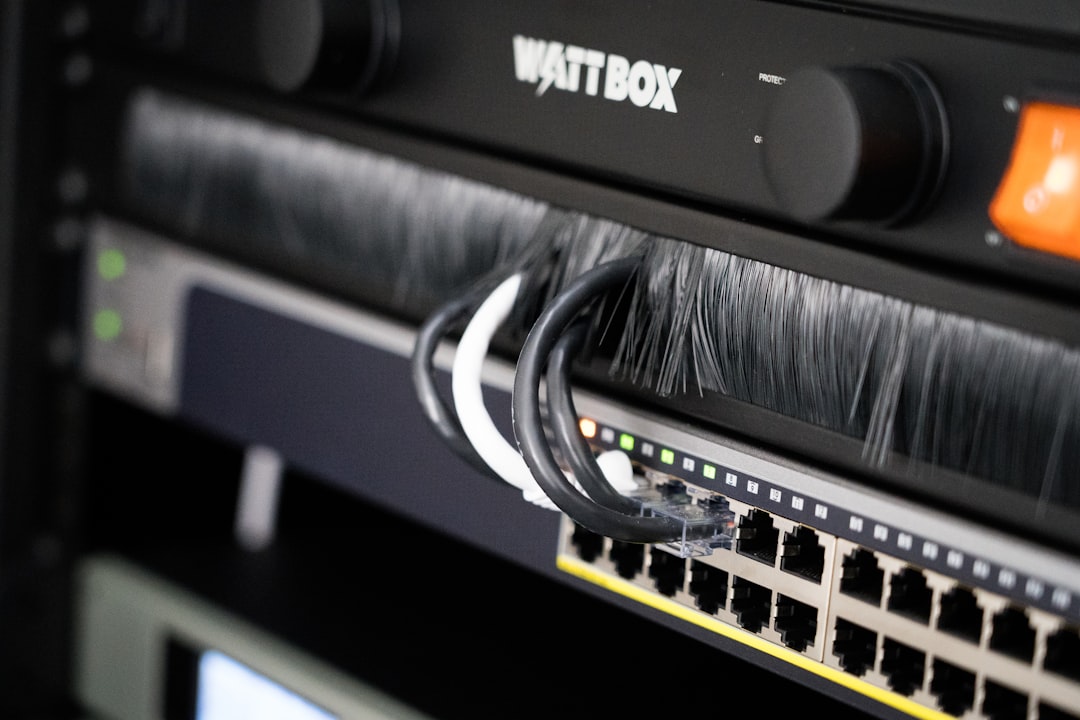
Photo by Samuel Ramos on Unsplash
PXE (Preboot eXecution Environment) lets machines boot and install an operating system entirely over the network. No USB drives, no ISOs burned to discs, no physical access needed after the initial BIOS setup. Point a machine at the network, power it on, and it installs the OS you specified automatically.

How PXE Works
The PXE boot process has four stages:
- DHCP: The machine powers on, its NIC requests an IP via DHCP. The DHCP server responds with an IP address and a "next-server" option pointing to the TFTP server, plus a filename to load.
- TFTP: The machine downloads a small bootloader (like iPXE or PXELINUX) over TFTP.
- Bootloader: The bootloader runs, displays a menu (if configured), and downloads the kernel and initrd for the selected OS.
- Installation: The kernel boots, the installer starts, and it can pull its configuration from a preseed/kickstart/autoinstall file on the network.
You need three components: a DHCP server (or the ability to add options to your existing one), a TFTP server, and an HTTP server to host the installation files.
Quick Start: netboot.xyz
netboot.xyz is the easiest way to get started with network booting. It provides a single iPXE menu that can boot dozens of operating systems and utilities — all streamed from the internet. You don't need to host any ISOs locally.
Docker Deployment
# docker-compose.yml
services:
  netbootxyz:
    image: ghcr.io/netbootxyz/netbootxyz:latest
    restart: unless-stopped
    ports:
      - "3000:3000"    # Web UI
      - "69:69/udp"    # TFTP
      - "8080:80"      # HTTP (for local assets)
    volumes:
      - ./config:/config
      - ./assets:/assets
DHCP Configuration
Your DHCP server needs to tell PXE clients where to find the boot file. The configuration depends on your DHCP server:
dnsmasq (commonly used with Pi-hole):
# /etc/dnsmasq.d/pxe.conf
dhcp-boot=netboot.xyz.kpxe,,10.0.0.50
dhcp-match=set:efi-x86_64,option:client-arch,7
dhcp-boot=tag:efi-x86_64,netboot.xyz.efi,,10.0.0.50
enable-tftp
tftp-root=/var/ftpd
ISC DHCP (isc-dhcp-server):
# /etc/dhcp/dhcpd.conf
next-server 10.0.0.50;

if option arch = 00:07 {
    filename "netboot.xyz.efi";
} else {
    filename "netboot.xyz.kpxe";
}
pfSense/OPNsense: Go to Services → DHCP Server → select your interface → scroll to "TFTP Server" and "Network Booting." Set the TFTP server IP and filename.
Important: You need different boot files for BIOS (netboot.xyz.kpxe) and UEFI (netboot.xyz.efi) systems. The DHCP config above handles this by checking the client architecture option.
Testing
- Set a machine to boot from network in BIOS/UEFI
- Power it on
- It should get a DHCP lease, download the bootloader, and show the netboot.xyz menu
- Select an OS (Ubuntu, Debian, Fedora, etc.) and it streams the installer from the internet
Custom iPXE Server
For faster installs and offline capability, host the installation media locally. This gives you full control over what's available and eliminates dependency on internet speed during installs.
iPXE Boot Menu
#!ipxe
# /var/www/boot/menu.ipxe

set menu-timeout 10000
set menu-default ubuntu

:start
menu Homelab PXE Boot Menu
item ubuntu       Ubuntu 24.04 Server
item debian       Debian 12 Bookworm
item fedora       Fedora 41 Server
item proxmox      Proxmox VE 8
item memtest      Memtest86+
item shell        iPXE Shell
item exit         Exit to local boot
choose --timeout ${menu-timeout} --default ${menu-default} selected || goto exit
goto ${selected}

:ubuntu
kernel http://10.0.0.50:8080/ubuntu/vmlinuz
initrd http://10.0.0.50:8080/ubuntu/initrd
imgargs vmlinuz initrd=initrd ip=dhcp url=http://10.0.0.50:8080/ubuntu/ubuntu-24.04-live-server-amd64.iso autoinstall ds=nocloud-net;s=http://10.0.0.50:8080/ubuntu/autoinstall/
boot || goto start

:debian
kernel http://10.0.0.50:8080/debian/linux
initrd http://10.0.0.50:8080/debian/initrd.gz
imgargs linux initrd=initrd.gz auto=true priority=critical url=http://10.0.0.50:8080/debian/preseed.cfg
boot || goto start

:fedora
kernel http://10.0.0.50:8080/fedora/vmlinuz
initrd http://10.0.0.50:8080/fedora/initrd.img
imgargs vmlinuz initrd=initrd.img inst.repo=http://10.0.0.50:8080/fedora/repo inst.ks=http://10.0.0.50:8080/fedora/kickstart.cfg
boot || goto start

:proxmox
kernel http://10.0.0.50:8080/proxmox/vmlinuz
initrd http://10.0.0.50:8080/proxmox/initrd
imgargs vmlinuz initrd=initrd ip=dhcp
boot || goto start

:memtest
kernel http://10.0.0.50:8080/utils/memtest86+.bin
boot || goto start

:shell
shell

:exit
exit
Hosting Installation Media
# Create directory structure
mkdir -p /var/www/boot/{ubuntu,debian,fedora,proxmox,utils}

# Download and extract Ubuntu installer
cd /var/www/boot/ubuntu
wget https://releases.ubuntu.com/24.04/ubuntu-24.04-live-server-amd64.iso
# Extract kernel and initrd from the ISO
mount -o loop ubuntu-24.04-live-server-amd64.iso /mnt
cp /mnt/casper/vmlinuz /mnt/casper/initrd .
umount /mnt

# For Debian, extract from the netinst ISO
cd /var/www/boot/debian
wget https://deb.debian.org/debian/dists/bookworm/main/installer-amd64/current/images/netboot/debian-installer/amd64/linux
wget https://deb.debian.org/debian/dists/bookworm/main/installer-amd64/current/images/netboot/debian-installer/amd64/initrd.gz
Want more networking guides? Get guides like this in your inbox — HomeLab Starter delivers one free deep-dive every week.
Automated Installation
PXE booting gets you to the installer, but you still have to click through it manually. Automation files let you answer every installer question in advance for a fully hands-off deployment.
Ubuntu Autoinstall
# /var/www/boot/ubuntu/autoinstall/user-data
#cloud-config
autoinstall:
  version: 1
  locale: en_US.UTF-8
  keyboard:
    layout: us
  identity:
    hostname: homelab-node
    username: admin
    password: "$6$rounds=4096$salt$hashedpassword"  # mkpasswd -m sha-512
  ssh:
    install-server: true
    authorized-keys:
      - ssh-ed25519 AAAA... your-key
    allow-pw: false
  storage:
    layout:
      name: lvm
  packages:
    - qemu-guest-agent
    - curl
    - htop
  late-commands:
    - curtin in-target -- systemctl enable qemu-guest-agent
# /var/www/boot/ubuntu/autoinstall/meta-data
# Empty file required by cloud-init
Debian Preseed
# /var/www/boot/debian/preseed.cfg
d-i debian-installer/locale string en_US.UTF-8
d-i keyboard-configuration/xkb-keymap select us
d-i netcfg/choose_interface select auto
d-i netcfg/get_hostname string homelab-node
d-i mirror/country string manual
d-i mirror/http/hostname string deb.debian.org
d-i mirror/http/directory string /debian
d-i partman-auto/method string lvm
d-i partman-auto/choose_recipe select atomic
d-i partman/confirm boolean true
d-i partman/confirm_nooverwrite boolean true
d-i passwd/root-login boolean false
d-i passwd/username string admin
d-i passwd/user-password-crypted password $6$rounds=4096$salt$hashedpassword
d-i pkgsel/include string openssh-server curl htop
d-i grub-installer/only_debian boolean true
d-i finish-install/reboot_in_progress note
d-i preseed/late_command string \
  mkdir -p /target/home/admin/.ssh; \
  echo "ssh-ed25519 AAAA... your-key" > /target/home/admin/.ssh/authorized_keys; \
  chmod 700 /target/home/admin/.ssh; \
  chmod 600 /target/home/admin/.ssh/authorized_keys; \
  chown -R 1000:1000 /target/home/admin/.ssh
Fedora/RHEL Kickstart
# /var/www/boot/fedora/kickstart.cfg
install
lang en_US.UTF-8
keyboard us
timezone America/New_York --utc
rootpw --lock
user --name=admin --groups=wheel --iscrypted --password=$6$rounds=4096$salt$hashedpassword
sshkey --username=admin "ssh-ed25519 AAAA... your-key"
bootloader --location=mbr
zerombr
clearpart --all --initlabel
autopart --type=lvm
network --bootproto=dhcp --activate
firewall --enabled --ssh
selinux --enforcing
services --enabled=sshd
%packages
@core
curl
htop
%end
reboot
Diskless Boot (Thin Clients)
PXE can also boot diskless machines that run entirely from a network-mounted root filesystem. This is useful for thin clients, kiosk machines, or ephemeral compute nodes.
NFS Root Setup
# On the NFS server
# Create a minimal root filesystem
sudo debootstrap --arch=amd64 bookworm /srv/nfsroot http://deb.debian.org/debian

# Configure the NFS export
# /etc/exports
/srv/nfsroot  10.0.0.0/24(ro,no_root_squash,no_subtree_check)

sudo exportfs -ra
iPXE Config for Diskless Boot
:diskless
kernel http://10.0.0.50:8080/diskless/vmlinuz
initrd http://10.0.0.50:8080/diskless/initrd.img
imgargs vmlinuz initrd=initrd.img root=/dev/nfs nfsroot=10.0.0.50:/srv/nfsroot ip=dhcp rw
boot || goto start
Scaling Up: Foreman
If you're managing more than a handful of machines and want a full lifecycle management tool, Foreman provides PXE provisioning, configuration management (Puppet/Ansible), and inventory management in one platform. It's the tool Red Hat Satellite is built on.
Foreman is overkill for most homelabs but worth investigating if you're managing 10+ physical machines and want enterprise-style provisioning.
Troubleshooting
Machine doesn't PXE boot: Check that network boot is enabled and set as a boot priority in BIOS/UEFI. Some machines have separate settings for legacy PXE and UEFI PXE.
DHCP works but no TFTP: Verify TFTP is running (sudo ss -ulnp | grep :69) and that your firewall allows UDP port 69. TFTP is notoriously firewall-unfriendly because it uses dynamic ports for data transfer.
Boot file not found: Check the path in your DHCP config matches the actual file location on the TFTP server. Case matters.
UEFI Secure Boot fails: Standard iPXE binaries aren't signed for Secure Boot. Either disable Secure Boot in BIOS or use a signed shim bootloader.
# Test TFTP manually from another machine
tftp 10.0.0.50
> get netboot.xyz.kpxe
> quit

# Check DHCP options being served
sudo tcpdump -i eth0 -n port 67 or port 68
PXE booting is one of those homelab capabilities that seems like overkill until you need to rebuild three machines in an afternoon. Set it up once, maintain your autoinstall configs, and you can go from bare metal to a running system in minutes without touching a USB drive.