NFS Server Setup for Your Homelab: Share Storage Across All Your Machines
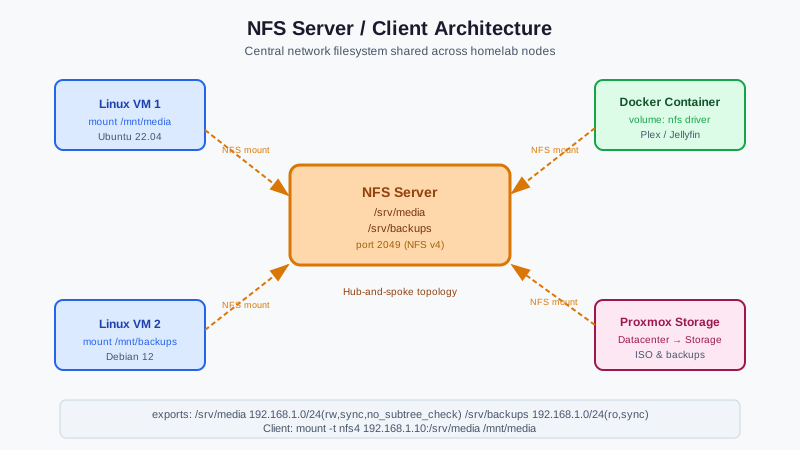
Once you have multiple machines in your homelab, you'll want shared storage — a single place where your media, backups, and VM images live, accessible from anywhere on the network.
Photo by Sourabh Belekar on Unsplash
NFS (Network File System) is the Linux-native way to do this. It's fast, mature, and works transparently with Linux tools. Docker containers, Kubernetes pods, and VMs can all mount NFS shares like local directories.
This guide covers setting up an NFS server on Linux (Ubuntu/Debian and RHEL/Fedora), configuring exports, and mounting shares on clients.
NFS vs. SMB/CIFS for a Homelab
| NFS | SMB | |
|---|---|---|
| Performance | Slightly faster on Linux-to-Linux | Better for Windows clients |
| Setup complexity | Simple on Linux | More complex (Samba config) |
| Permissions | Unix UID/GID mapping | Windows ACLs |
| Docker/Kubernetes | Native support | Requires additional driver |
| macOS support | Built-in (mediocre) | Better via Samba |
Use NFS when all your clients are Linux. Use SMB (Samba) when you need Windows client access. For a mixed environment, run both — they can coexist on the same server.
Server Setup
Ubuntu/Debian
apt update && apt install nfs-kernel-server
systemctl enable --now nfs-kernel-server
RHEL/Fedora/Rocky Linux
dnf install nfs-utils
systemctl enable --now nfs-server
# Enable firewall access
firewall-cmd --permanent --add-service=nfs
firewall-cmd --reload
Configuring Exports
The /etc/exports file defines what directories are shared and who can access them.
Basic syntax
/path/to/share client_spec(options)
Examples
# Share to specific IP
/srv/media   192.168.1.100(rw,sync,no_subtree_check)

# Share to entire subnet
/srv/media   192.168.1.0/24(rw,sync,no_subtree_check)

# Share to multiple clients with different permissions
/srv/backups  192.168.1.50(rw,sync,no_subtree_check) 192.168.1.51(ro,sync,no_subtree_check)

# Read-only share to entire LAN
/srv/isos    192.168.0.0/16(ro,sync,no_subtree_check)
Common options explained
| Option | Effect |
|---|---|
rw |
Read-write access |
ro |
Read-only access |
sync |
Write to disk before replying (safer, slightly slower) |
async |
Reply before writing to disk (faster, risky on power loss) |
no_subtree_check |
Disable subtree checking (recommended, prevents issues with renamed files) |
no_root_squash |
Allow root on client to act as root on server (use with caution) |
root_squash |
Map client root to anonymous user (default, safer) |
all_squash |
Map all users to anonymous |
anonuid=1000,anongid=1000 |
Specify the anonymous UID/GID |
Apply changes
After editing /etc/exports:
exportfs -ra  # Re-export all shares
exportfs -v   # Verify what's exported
Want more storage guides? Get guides like this in your inbox — HomeLab Starter delivers one free deep-dive every week.
Example: Home Media Server
Typical NFS setup for a media server with separate shares:
# /etc/exports

# Media library (read-only for most, read-write for media server)
/srv/media/movies    192.168.1.0/24(ro,sync,no_subtree_check)
/srv/media/tv        192.168.1.0/24(ro,sync,no_subtree_check)
/srv/media/music     192.168.1.0/24(ro,sync,no_subtree_check)

# Incoming (Radarr/Sonarr write here)
/srv/media/incoming  192.168.1.50(rw,sync,no_subtree_check)

# Backups (only backup server has access)
/srv/backups  192.168.1.200(rw,sync,no_subtree_check,no_root_squash)
Client Setup
Linux (fstab mount)
Install NFS client tools:
# Ubuntu/Debian
apt install nfs-common

# RHEL/Fedora
dnf install nfs-utils
Test the share mounts manually first:
showmount -e 192.168.1.10  # List exports from server
mkdir -p /mnt/media
mount -t nfs 192.168.1.10:/srv/media /mnt/media
Add to /etc/fstab for automatic mounting:
192.168.1.10:/srv/media /mnt/media nfs defaults,_netdev,x-systemd.automount 0 0
The _netdev option tells systemd to wait for network before mounting. x-systemd.automount enables lazy mounting — the mount activates when first accessed, which avoids boot delays if the NFS server is briefly unavailable.
Apply fstab changes without rebooting:
systemctl daemon-reload
mount -a
Docker
Mount an NFS share as a Docker volume:
# docker-compose.yml
services:
  jellyfin:
    image: jellyfin/jellyfin
    volumes:
      - media:/media/movies

volumes:
  media:
    driver: local
    driver_opts:
      type: nfs
      o: addr=192.168.1.10,nfsvers=4,soft,timeo=30,retrans=3
      device: ":/srv/media/movies"
Or create a named volume separately:
docker volume create \
  --driver local \
  --opt type=nfs \
  --opt o=addr=192.168.1.10,rw \
  --opt device=:/srv/media \
  media-nfs
Kubernetes / Proxmox
For Kubernetes NFS persistent volumes:
apiVersion: v1
kind: PersistentVolume
metadata:
  name: media-pv
spec:
  capacity:
    storage: 2Ti
  accessModes:
    - ReadWriteMany
  nfs:
    server: 192.168.1.10
    path: /srv/media
For Proxmox VMs, add an NFS storage backend via Datacenter → Storage → Add → NFS.
Performance Tuning
On the server: increase threads
The NFS kernel server defaults to 8 worker threads. For heavy workloads:
# /etc/nfs.conf (or /etc/default/nfs-kernel-server on Debian)
[nfsd]
threads=16
systemctl restart nfs-kernel-server
On the client: tune mount options
For better sequential throughput with large files (media):
192.168.1.10:/srv/media /mnt/media nfs rsize=131072,wsize=131072,timeo=14,hard,_netdev 0 0
rsize/wsize: Transfer block sizes (128KB works well for modern networks)hard: Retry forever if server unreachable (appropriate for LAN NFS)timeo=14: 1.4 second timeout before retry
NFS version
Prefer NFSv4 for better performance and security:
192.168.1.10:/srv/media /mnt/media nfs4 defaults,_netdev 0 0
NFSv4 uses a single TCP port (2049), making it easier to firewall than NFSv3.
Permissions and UID/GID Mapping
The most common NFS headache: files owned by the wrong user.
NFS passes UID/GID numbers between client and server — not usernames. If the user hailey on the server has UID 1000, and the user media on the client also has UID 1000, NFS will show server files as owned by media on the client.
Solution: Ensure UIDs match across your homelab. Either:
- Use a consistent UID/GID policy (assign UIDs manually to service accounts)
- Use a central LDAP/AD server for identity
- Create matching users with matching UIDs on all machines
For Docker containers, set the container's UID to match the server user:
services:
  jellyfin:
    image: jellyfin/jellyfin
    user: "1000:1000"  # Match server's media user
Security
NFS has minimal built-in authentication — access control is by IP address only. Keep these principles in mind:
- Never expose NFS to the internet — NFS is designed for trusted LANs
- Restrict to specific IPs or subnets, not
*(world) - Use NFSv4 with Kerberos for encrypted, authenticated access (complex but available)
- Keep NFS on an isolated VLAN if you have IoT devices or untrusted hosts on your network
- Use
root_squash(the default) to prevent clients from having root access to server files
For a basic homelab with trusted clients, IP-based access control is sufficient. If you're running multi-tenant infrastructure or untrusted VMs, add a VLAN and consider Kerberos.
Monitoring NFS
Check NFS statistics:
nfsstat -s  # Server statistics
nfsstat -c  # Client statistics
mountstats  # Detailed per-mount stats
cat /proc/net/rpc/nfsd  # Raw kernel counters
Grafana + Prometheus has NFS exporters for long-term monitoring in a homelab dashboard.
Troubleshooting
Mount hangs: Check that ports 2049 (TCP/UDP) are open on the server firewall. For NFSv3, also open 111 (portmapper) and the mountd/statd ports.
Permission denied: Check /etc/exports for the correct IP/subnet. Ensure the export is actually active: exportfs -v.
Stale file handle: The share was unmounted on the server while the client had files open. Unmount and remount on the client.
Slow performance: Check for sync vs async in exports. For non-critical data, async is significantly faster. Check NFS version (prefer NFSv4). Increase rsize/wsize.