
Proxmox: LXC Containers vs. VMs — When to Use Each
Proxmox gives you two ways to run workloads: LXC containers and full virtual machines. Both appear in the same interface, both use resources from the host, but they're fundamentally different technologies — and choosing wrong can cost you significant effort later.
Photo by Albert Stoynov on Unsplash
This guide cuts through the confusion with concrete guidance on when to use each.
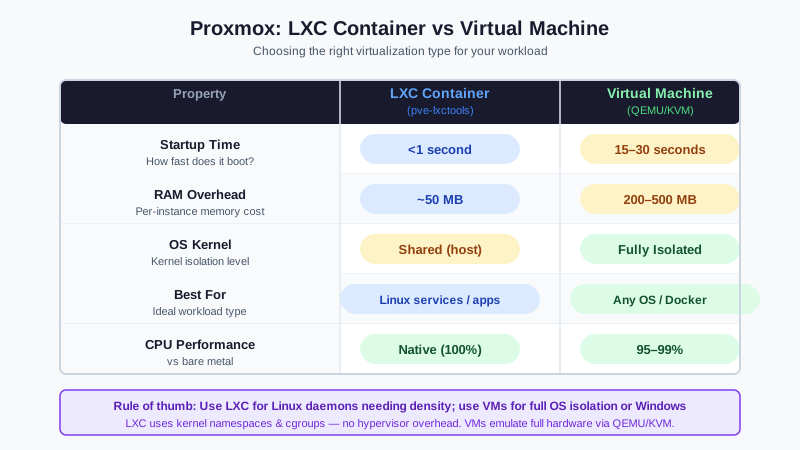
The Core Difference
Virtual Machines (KVM/QEMU)
A VM runs a complete operating system in a hardware-isolated environment. Proxmox uses KVM (Kernel-based Virtual Machine) with QEMU for emulation. Each VM has:
- Its own kernel
- Emulated or paravirtual hardware (CPU, network, disk)
- Full isolation from the host and other VMs
- Any guest OS: Linux, Windows, BSD, even macOS with effort
The VM doesn't know it's a VM (by default). It boots like a real machine, has BIOS/UEFI, and can do anything an OS can do.
LXC Containers
An LXC container shares the host's kernel but runs in an isolated filesystem and process namespace. Think of it as a lightweight VM that skips the virtualization layer:
- No separate kernel — uses the host kernel directly
- Minimal overhead compared to VMs
- Only Linux guests (any distro, but kernel-limited to host's kernel version)
- Not fully isolated — the container and host share kernel syscall surface
The difference is noticeable: an LXC container starts in under a second and uses negligible RAM for idle overhead. A VM boots in 15–30 seconds and uses 200–400MB for the operating system alone.
Performance Comparison
| Metric | LXC | VM |
|---|---|---|
| Boot time | <1 second | 15–30 seconds |
| Idle RAM overhead | ~50MB | 200–500MB |
| CPU overhead | Near zero | <5% for most workloads |
| Network throughput | Host-level | 95–99% of host (with virtio) |
| Disk throughput | Host-level | 95–99% of host (with virtio) |
| Storage I/O latency | Host-level | Slightly higher |
For CPU/network/disk-intensive workloads, the performance difference between a modern VM with paravirtual drivers and LXC is small in practice. The bigger difference is startup time and idle resource usage — which matters a lot when you have 20+ services running.
When to Use LXC Containers
LXC is the right choice when:
Running standard Linux services with no kernel requirements. Web servers, databases, Minecraft servers, home automation, media services, DNS — anything that's "run this application" and doesn't need special kernel features.
You want to run many services efficiently. Ten LXC containers might use the same resources as two VMs. For a homelab running 20+ services, this matters.
You want fast iteration. LXC containers start instantly, clone instantly, and templates make spinning up new services trivial.
The workload is Linux-only. If you're running Nginx, PostgreSQL, Nextcloud, Jellyfin — LXC is perfect.
LXC examples in a homelab
- Nginx/Caddy reverse proxy
- Pi-hole or AdGuard Home
- Home Assistant (non-HAOS)
- Gitea/Forgejo
- Nextcloud
- Databases (PostgreSQL, MariaDB, Redis)
- Monitoring stack (Prometheus, Grafana, Loki)
- Vaultwarden
- Paperless-NGX
Want more virtualization guides? Get guides like this in your inbox — HomeLab Starter delivers one free deep-dive every week.
When to Use VMs
VMs are the right choice when:
Running Windows. No choice here — LXC only supports Linux.
GPU passthrough. Passing a physical GPU to a VM for gaming or AI workloads requires full virtualization. LXC can't do hardware passthrough.
Running Docker or Kubernetes. Docker runs inside LXC containers (with nesting=1 and keyctl=1 enabled), but it's not officially supported and can cause issues. Running a dedicated VM for Docker or k3s is more reliable.
Full kernel isolation is required. Security-sensitive workloads where you don't want to share kernel surface with the host or other containers.
Network appliances. pfSense, OPNsense, and similar firewall distributions are VMs by design.
Testing or CI/CD. When you need a completely clean OS environment for testing, reproducible builds, or disposable environments.
Nested virtualization. Running Proxmox inside Proxmox for lab scenarios.
VM examples in a homelab
- Windows (gaming, software testing)
- pfSense/OPNsense firewall
- Docker host (k3s or Docker Compose)
- Kubernetes nodes
- Home Assistant OS (the official distribution)
- Development environments
- Security isolation for untrusted workloads
The Gray Area: Docker Inside LXC
Many homelab guides recommend running Docker inside an LXC container rather than a VM. This does work with the right settings, but it's worth understanding the trade-offs:
LXC + Docker (nesting):
- Works:
pct set <id> -features nesting=1,keyctl=1 - Lighter: no separate OS overhead vs. a VM
- Less isolated: Docker running in LXC has more access to host kernel than Docker in a VM
- Compatible: works for most Docker workloads, some edge cases fail
Docker in a dedicated VM:
- More overhead: a few hundred MB RAM for the VM OS
- More isolated: full hardware virtualization boundary
- More compatible: any Docker workload, including ones using specific kernel features
- Recommended for production-quality reliability
For a personal homelab running standard containers, LXC + Docker works fine. For anything security-sensitive or using obscure container features, use a VM.
Practical Examples
What I'd run as LXC
CT 100: pihole         (512MB RAM, 8GB disk)
CT 101: nginx-proxy    (256MB RAM, 4GB disk)
CT 102: vaultwarden    (256MB RAM, 8GB disk)
CT 103: gitea          (512MB RAM, 20GB disk)
CT 104: monitoring     (1GB RAM, 50GB disk)
CT 105: paperless      (1GB RAM, 50GB disk)
CT 106: home-assistant (512MB RAM, 8GB disk)
Seven services using maybe 4–5GB RAM total, all starting in under a second.
What I'd run as VM
VM 200: windows11      (8GB RAM, 100GB disk)  - Gaming/desktop
VM 201: docker-host    (4GB RAM, 100GB disk)  - Docker Compose stack
VM 202: k3s-node       (4GB RAM, 100GB disk)  - Kubernetes
VM 203: opnsense       (2GB RAM, 16GB disk)   - Firewall
Creating an LXC Container in Proxmox
Download a template: Storage → CT Templates → Templates → Download Good starting templates:
debian-12-standard,ubuntu-22.04-standardCreate container: Create CT
- General: Set ID, hostname, password
- Template: Select your downloaded template
- Disks: Set size (start small, you can resize later)
- CPU: 1–2 cores for most services
- Memory: 256–512MB for lightweight services
- Network: bridge to
vmbr0 - DNS: Use host settings or set custom
Start and access:
pct start 100
pct enter 100  # Direct console
# Or SSH if you set up keys
Privileged vs. Unprivileged Containers
Proxmox creates unprivileged containers by default — UIDs inside the container are mapped to non-root UIDs on the host. This is more secure.
Some use cases require privileged containers (e.g., NFS mounts inside LXC, some hardware access). Only use privileged mode when necessary.
Snapshots and Templates
Both LXC and VMs support snapshots in Proxmox. LXC snapshots are near-instant; VM snapshots take longer proportional to RAM size.
To create a template from an existing container:
pct template 100 # Convert CT 100 to template
Templates can be cloned to create new containers in seconds — great for standardized service deployments.