Homelab Power Consumption: Measure, Optimize, and Cut Your Electric Bill
Running a homelab is one of the most rewarding hobbies in tech. But there is a recurring cost that sneaks up on everyone: electricity. That rack of servers humming away in your closet draws power 24 hours a day, 365 days a year. A single server idling at 120 watts costs you roughly $126 per year at the US average rate of $0.12/kWh. Scale that to three or four machines and you are looking at a meaningful chunk of your household electric bill.
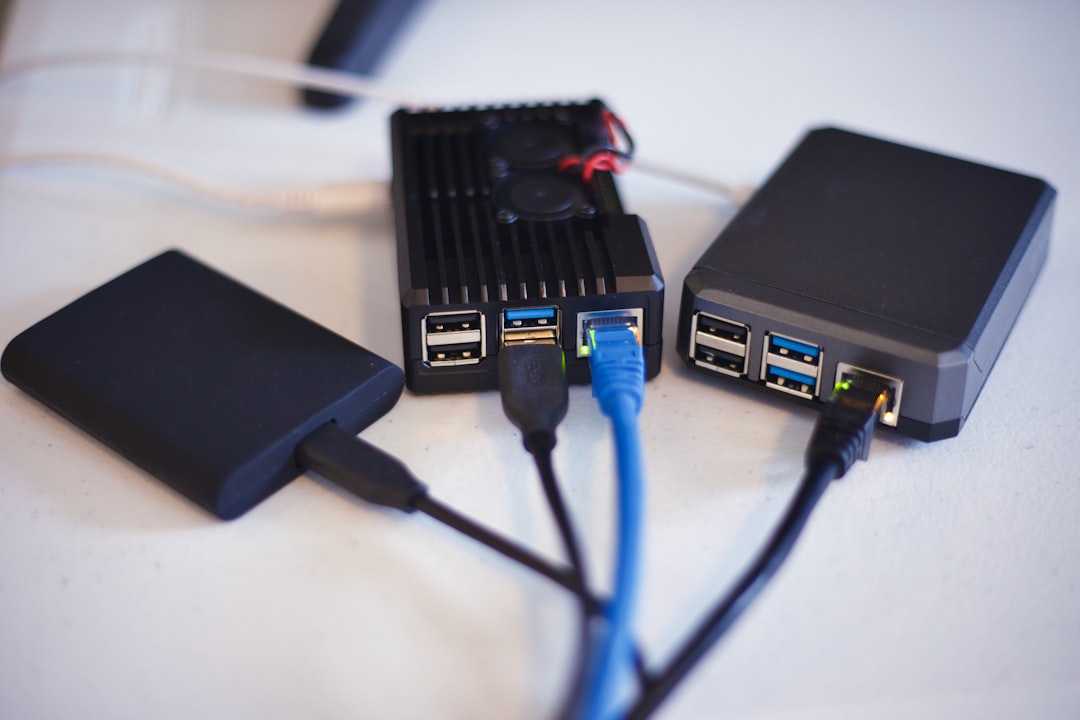
Photo by Jainath Ponnala on Unsplash

The good news is that most homelabs are dramatically over-provisioned for power. With the right measurements and a few targeted changes, you can often cut your power draw by 30-50% without losing any functionality. This guide covers the tools, techniques, and math you need to take control of your homelab's energy footprint.
Why Power Consumption Matters
Before you optimize anything, you need to understand the financial impact. The formula for calculating power cost is straightforward:
Annual cost = (watts x 24 x 365) / 1000 x rate_per_kWh
Here is what different idle power levels cost at various electricity rates:
| Idle Watts | $0.10/kWh | $0.15/kWh | $0.20/kWh | $0.30/kWh |
|---|---|---|---|---|
| 20W | $17.52 | $26.28 | $35.04 | $52.56 |
| 50W | $43.80 | $65.70 | $87.60 | $131.40 |
| 100W | $87.60 | $131.40 | $175.20 | $262.80 |
| 200W | $175.20 | $262.80 | $350.40 | $525.60 |
| 400W | $350.40 | $525.60 | $700.80 | $1,051.20 |
If you live in a state like California or Hawaii where rates regularly exceed $0.25/kWh, even a modest 100-watt homelab costs you over $200 per year. In Europe, rates above $0.30/kWh make power optimization essential rather than optional.
Measuring Your Actual Power Draw
You cannot optimize what you have not measured. Guessing based on PSU ratings or TDP numbers will mislead you badly. A 500-watt power supply does not draw 500 watts -- it draws whatever the components actually need, which could be 60 watts at idle.
Kill-A-Watt and Plug-In Meters
The simplest and most popular tool is a plug-in watt meter like the Kill-A-Watt P3 (around $20-30). You plug it into the wall, then plug your server into it. It shows you real-time wattage, voltage, current, and cumulative kWh over time.
How to use a Kill-A-Watt:
1. Plug the meter into the wall outlet
2. Plug your server's power cable into the meter
3. Power on the server and let it reach idle (wait 5-10 minutes)
4. Note the wattage reading -- this is your idle draw
5. Run a stress test (stress-ng, prime95) and note peak draw
6. Leave it plugged in for 24-48 hours to get a real average
The 24-48 hour measurement is important. Your server does not sit at a constant wattage. It spikes during backups, cron jobs, and container updates. The cumulative kWh reading divided by hours gives you the true average.
Other good plug-in meters include the Poniie PN2000 and the Emporia smart plug, which can log data to an app for long-term tracking.
Smart PDUs and Rack Power Strips
If you have a rack setup with multiple machines, individual plug-in meters become cumbersome. A smart PDU (Power Distribution Unit) monitors each outlet and reports power draw over the network. Options include:
- APC Switched Rack PDU: Enterprise-grade, SNMP-capable, often available used on eBay for $50-100
- Tripp Lite PDUMH15NET: Budget option with per-outlet monitoring
- DIY with Shelly smart plugs: Use Shelly Plug S or Plus Plug S for per-device monitoring at $15-20 each, with local API access and Home Assistant integration
For a smart PDU approach, you can scrape power data into Prometheus and visualize it in Grafana:
# docker-compose.yml snippet for Shelly exporter
services:
  shelly-exporter:
    image: tammersaleh/shelly-exporter:latest
    ports:
      - "9784:9784"
    environment:
      - SHELLY_HOSTS=192.168.1.50,192.168.1.51,192.168.1.52
Software-Based Estimation
Some systems can report power draw without external hardware:
# Intel RAPL (Running Average Power Limit) -- reads CPU power on Intel systems
cat /sys/class/powercap/intel-rapl:0/energy_uj

# IPMI sensor data on servers with BMC
ipmitool sensor | grep -i watt

# Proxmox shows power data if IPMI is available
pvesh get /nodes/<nodename>/status
Software readings are useful for relative comparisons (did this change reduce power?) but they only measure the CPU package, not the whole system. Always validate against a wall meter.
Understanding TDP, Idle Power, and Load Power
Manufacturers publish TDP (Thermal Design Power) for CPUs, but TDP is not power consumption. TDP tells the cooler designer how much heat to handle under sustained load. Actual power consumption varies dramatically:
| CPU | TDP | Idle Power (System) | Load Power (System) |
|---|---|---|---|
| Intel N100 | 6W | 8-12W | 25-30W |
| Intel i5-12400 | 65W | 25-35W | 90-120W |
| AMD Ryzen 5 5600G | 65W | 20-30W | 85-110W |
| Intel Xeon E5-2680 v4 | 120W | 80-110W | 200-280W |
| Intel Xeon E-2388G | 95W | 30-45W | 120-160W |
| AMD EPYC 7302P | 155W | 50-70W | 180-240W |
The critical insight here is that idle power is what matters most. Your homelab probably sits at idle 90-95% of the time. A machine that draws 35 watts at idle vs. 100 watts at idle costs you an extra $57/year at $0.10/kWh -- and that gap widens at higher electricity rates.
This is why generation matters more than brand. A modern Intel i5-12400 idles far lower than an older Xeon E5-2680 v4 while providing comparable or better single-threaded performance.
Want more hardware guides? Get guides like this in your inbox — HomeLab Starter delivers one free deep-dive every week.
Reducing Power: Hardware Choices
Choose Modern, Efficient Hardware
The single biggest power reduction comes from using newer hardware. Older enterprise servers (Dell PowerEdge R720, HP DL380 G8) are cheap on eBay but they idle at 80-150 watts each. A modern mini PC like a Beelink EQ12 with an Intel N100 idles at 8-12 watts and handles a surprising number of services.
| Platform | Typical Idle | Good For |
|---|---|---|
| Raspberry Pi 4/5 | 3-6W | DNS, Pi-hole, lightweight containers |
| Intel N100 mini PC | 8-12W | Docker host, small VM server |
| Intel i5 (12th gen) SFF | 25-35W | Medium homelab, multiple VMs |
| AMD Ryzen mini server | 20-30W | Balanced performance/efficiency |
| Used enterprise 1U server | 60-150W | When you need raw CPU/RAM |
If you are starting fresh, strongly consider consolidating onto one or two efficient machines rather than running four older servers.
Right-Size Your RAM
Each DIMM draws power, typically 2-4 watts for DDR4 and 1.5-3 watts for DDR5 per stick. Eight DIMMs in a dual-socket server can add 20-30 watts. If you have 128 GB installed but only use 40 GB, removing unused DIMMs saves real power.
# Check how much RAM you are actually using
free -h
# Or for more detail
cat /proc/meminfo | head -5
Reduce Drive Count
Spinning hard drives draw 5-10 watts each. A server with six HDDs adds 30-60 watts just from disks. SSDs draw under 2 watts each. If you migrated to SSDs but left old HDDs in the chassis, pull them out.
Reducing Power: BIOS and OS Settings
BIOS/UEFI Power Management
Enter your BIOS and look for these settings:
- C-States: Enable all C-states (C1E, C3, C6, C7). These let the CPU enter progressively deeper sleep states at idle. This is the single most impactful BIOS setting for idle power.
- SpeedStep / EIST (Intel) or Cool'n'Quiet (AMD): Enable. Lets the CPU scale frequency down at idle.
- Power Profile: Set to "Balanced" or "Power Saving" rather than "Performance" or "Max Performance."
- Memory speed: Running RAM at lower speeds (2133 vs 3200 MHz) saves a small amount of power if you do not need the bandwidth.
- Unused onboard devices: Disable onboard audio, serial ports, or unused NICs in BIOS to save 1-3 watts total.
Linux Power Governor
On Linux, set the CPU frequency governor to powersave or schedutil:
# Check current governor
cat /sys/devices/system/cpu/cpu0/cpufreq/scaling_governor

# Set to powersave (lowest frequency at idle, scales up under load)
echo "powersave" | sudo tee /sys/devices/system/cpu/cpu*/cpufreq/scaling_governor

# Or use schedutil (smarter scaling based on scheduler hints)
echo "schedutil" | sudo tee /sys/devices/system/cpu/cpu*/cpufreq/scaling_governor

# Make it persistent with cpufrequtils
sudo apt install cpufrequtils
echo 'GOVERNOR="powersave"' | sudo tee /etc/default/cpufrequtils
sudo systemctl restart cpufrequtils
Enable ASPM for PCIe
Active State Power Management (ASPM) reduces power for PCIe devices at idle:
# Check current ASPM policy
cat /sys/module/pcie_aspm/parameters/policy

# Set to powersupersave for maximum savings
echo "powersupersave" | sudo tee /sys/module/pcie_aspm/parameters/policy

# Make persistent via kernel command line in /etc/default/grub:
# GRUB_CMDLINE_LINUX="pcie_aspm=force pcie_aspm.policy=powersupersave"
Note: ASPM can cause stability issues with some network cards. Test thoroughly before making it permanent.
Scheduling Shutdowns and Wake-on-LAN
Not every machine needs to run 24/7. If you only use your media server in the evenings, or your development VM on weekdays, schedule it to sleep or shut down during idle periods.
Automated Shutdown with Systemd Timers
# /etc/systemd/system/auto-shutdown.timer
[Unit]
Description=Shutdown server at midnight

[Timer]
OnCalendar=*-*-* 00:00:00
Persistent=true

[Install]
WantedBy=timers.target
# /etc/systemd/system/auto-shutdown.service
[Unit]
Description=Conditional shutdown if no active users

[Service]
Type=oneshot
ExecStart=/usr/local/bin/conditional-shutdown.sh
#!/bin/bash
# /usr/local/bin/conditional-shutdown.sh
# Only shut down if no SSH sessions and low CPU usage
USERS=$(who | wc -l)
CPU_LOAD=$(awk '{print $1}' /proc/loadavg)

if [ "$USERS" -eq 0 ] && (( $(echo "$CPU_LOAD < 0.5" | bc -l) )); then
    logger "Auto-shutdown: no users, low load. Shutting down."
    /sbin/shutdown -h +2 "Scheduled shutdown in 2 minutes"
else
    logger "Auto-shutdown: skipped (users=$USERS, load=$CPU_LOAD)"
fi
Wake-on-LAN
Set up Wake-on-LAN so you can power machines back on remotely:
# Enable WoL on the server (must also be enabled in BIOS)
sudo ethtool -s enp0s31f6 wol g

# Make persistent with a systemd service
sudo tee /etc/systemd/system/wol.service << 'EOF'
[Unit]
Description=Enable Wake-on-LAN
After=network.target

[Service]
Type=oneshot
ExecStart=/sbin/ethtool -s enp0s31f6 wol g

[Install]
WantedBy=multi-user.target
EOF

# From another machine, wake the server
wakeonlan AA:BB:CC:DD:EE:FF
# Or with etherwake
sudo etherwake -i eth0 AA:BB:CC:DD:EE:FF
Calculating Your Annual Power Budget
Once you have real measurements, build a simple spreadsheet to understand your total lab costs:
Server 1 (Proxmox host):  35W avg x 24h x 365d = 306.6 kWh
Server 2 (NAS):           28W avg x 24h x 365d = 245.3 kWh
Switch (8-port managed):   8W avg x 24h x 365d =  70.1 kWh
Router (OPNsense box):    12W avg x 24h x 365d = 105.1 kWh
UPS overhead:              5W avg x 24h x 365d =  43.8 kWh
─────────────────────────────────────────────────────────────
Total:                    88W              Total: 770.9 kWh

At $0.12/kWh: $92.51/year  ($7.71/month)
At $0.20/kWh: $154.18/year ($12.85/month)
At $0.30/kWh: $231.27/year ($19.27/month)
This kind of inventory also reveals where your money goes. If one server accounts for 60% of your total draw, that is where you focus your optimization efforts.
Monitoring Power Over Time
For ongoing monitoring, integrate power data into your existing observability stack:
# Prometheus scrape config for Shelly smart plugs
scrape_configs:
  - job_name: 'shelly'
    static_configs:
      - targets: ['shelly-exporter:9784']
    scrape_interval: 30s
Create a Grafana dashboard showing:
- Real-time wattage per device
- Daily/weekly/monthly kWh consumption
- Cost estimates based on your local rate
- Trends over time (did upgrading the NAS change your baseline?)
Tracking power over months reveals patterns you would never catch with a one-time measurement. You might discover that your backup job at 3 AM doubles your power draw for two hours, or that a particular container's cron job keeps the CPU from entering deep sleep.
Practical Optimization Checklist
Here is a prioritized list of changes, ordered by typical impact:
- Replace old enterprise servers with modern efficient hardware -- Often saves 50-100W per server
- Enable C-states and power management in BIOS -- Saves 10-30W per machine
- Set CPU governor to powersave or schedutil -- Saves 5-15W per machine
- Remove unused RAM DIMMs -- Saves 2-4W per DIMM removed
- Remove or replace spinning disks with SSDs -- Saves 5-10W per HDD removed
- Consolidate services onto fewer machines -- Eliminates entire servers worth of baseline draw
- Schedule shutdowns for non-critical machines -- Saves 100% of that machine's draw during off hours
- Disable unused BIOS peripherals -- Saves 1-3W per machine
- Enable PCIe ASPM -- Saves 1-5W per machine
Even if you only do the first three items, you will likely see a significant reduction in your power bill. The key is to measure first, then make targeted changes and verify the improvement with your watt meter.
Your homelab should work for you, not against your electric bill. With real measurements and a few strategic changes, you can run a capable lab without dreading the monthly utility statement.