Homelab ZFS on Linux Complete Guide
ZFS on Linux has matured from "experimental" to "the filesystem serious homelabbers run their data on." It gives you checksumming for every block of data, instant snapshots, built-in compression, flexible RAID configurations, and send/receive replication that makes off-site backups trivially easy. All in a single filesystem that replaces the traditional stack of mdraid + LVM + ext4.
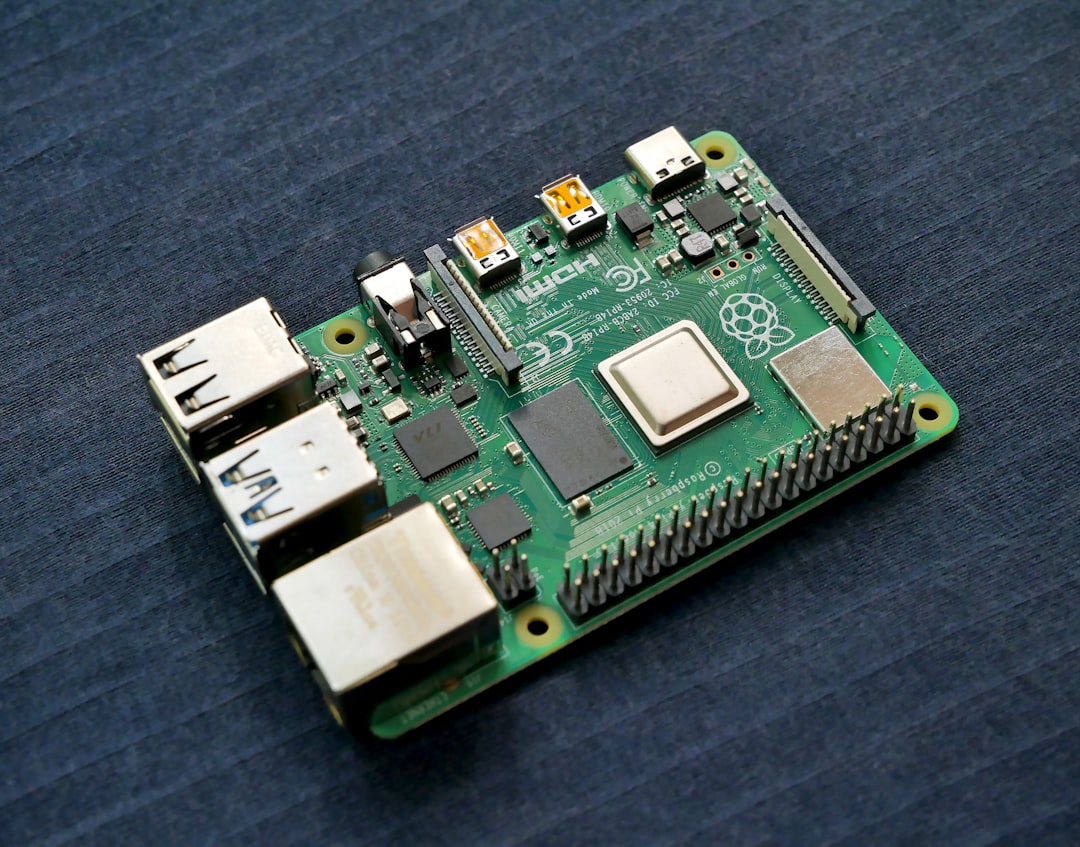
Photo by Vishnu Mohanan on Unsplash
This guide walks through the entire ZFS lifecycle on Debian and Ubuntu: installation, pool creation, dataset configuration, ongoing maintenance, snapshots, and replication. It's specifically for Linux -- if you're running TrueNAS or FreeBSD, the commands are the same but the installation differs.

Installing ZFS on Linux
Debian 12 (Bookworm)
ZFS is available in the contrib repository. You need to enable it first, then install the packages:
# Add contrib to your sources
sudo sed -i 's/bookworm main/bookworm main contrib/' /etc/apt/sources.list
sudo apt update

# Install ZFS
sudo apt install linux-headers-amd64 zfsutils-linux

# Verify
zfs --version
The installation pulls in the DKMS module, which means ZFS is compiled against your running kernel. After kernel upgrades, the module is rebuilt automatically. You'll see DKMS output during apt upgrade when a new kernel is installed.
Ubuntu 22.04 / 24.04
Ubuntu has ZFS support out of the box. The packages are in the main repository:
sudo apt install zfsutils-linux

# Verify
zfs --version
Ubuntu's kernel ships with a prebuilt ZFS module, so you don't need DKMS or kernel headers. This makes installation faster and kernel upgrades smoother.
Post-Installation Verification
After installation, verify the ZFS module is loaded:
lsmod | grep zfs
You should see zfs, spl, zavl, znvpair, and related modules loaded. If not:
sudo modprobe zfs
Understanding ZFS Architecture
Before creating pools, understand the three layers of ZFS:
Pool (zpool): The top-level container. A pool spans one or more vdevs and presents a single storage namespace. You can think of it like a volume group in LVM, but with built-in redundancy.
Vdev (virtual device): A group of physical disks configured for redundancy. Common vdev types are mirrors (2+ disks, like RAID1), raidz1 (like RAID5), raidz2 (like RAID6), and raidz3 (triple parity). A pool is striped across its vdevs -- data is spread across all vdevs for performance.
Dataset: A filesystem within a pool. Datasets share the pool's storage but have independent settings for compression, quotas, mount points, and snapshot policies. Think of them like folders with superpowers.
The critical thing to understand: redundancy is at the vdev level, not the pool level. If you have a pool with two mirror vdevs, losing one disk in each mirror simultaneously means losing the pool. Plan your vdev layout carefully.
Creating Your First Pool
Identify Your Disks
List your available disks:
lsblk -d -o NAME,SIZE,MODEL,SERIAL
Always use disk identifiers that won't change across reboots. /dev/sda can shift if you add or remove disks. Use /dev/disk/by-id/ paths instead:
ls -la /dev/disk/by-id/ | grep -v part
Mirror Pool (2 Disks)
The simplest and most recommended configuration for a homelab. A mirror gives you full redundancy -- either disk can fail without data loss, and read performance is doubled since both disks can serve reads:
sudo zpool create tank mirror \
  /dev/disk/by-id/ata-WDC_WD40EFRX_SERIAL1 \
  /dev/disk/by-id/ata-WDC_WD40EFRX_SERIAL2
This creates a pool called tank backed by a two-disk mirror. You get 4TB usable from two 4TB disks.
Striped Mirror Pool (4 Disks)
For better performance with more disks, create two mirror vdevs. The pool stripes across them:
sudo zpool create tank \
  mirror \
    /dev/disk/by-id/ata-WDC_WD40EFRX_SERIAL1 \
    /dev/disk/by-id/ata-WDC_WD40EFRX_SERIAL2 \
  mirror \
    /dev/disk/by-id/ata-WDC_WD40EFRX_SERIAL3 \
    /dev/disk/by-id/ata-WDC_WD40EFRX_SERIAL4
This gives you 8TB usable from four 4TB disks, with redundancy in each mirror and read performance from all four disks. This is generally preferred over raidz1 for homelabs because resilver (rebuild) times are much faster.
RAIDZ1 Pool (3+ Disks)
RAIDZ1 is similar to RAID5 -- one disk of parity, so you can lose one disk without data loss:
sudo zpool create tank raidz1 \
  /dev/disk/by-id/ata-WDC_WD40EFRX_SERIAL1 \
  /dev/disk/by-id/ata-WDC_WD40EFRX_SERIAL2 \
  /dev/disk/by-id/ata-WDC_WD40EFRX_SERIAL3
Three 4TB disks give you 8TB usable. The downside: resilver times on large disks can take days, and during a resilver, a second disk failure means total data loss. For disks larger than 4TB, consider raidz2 instead.
Pool Properties Worth Setting
After creating your pool, set some important properties:
# Set the mount point
sudo zfs set mountpoint=/tank tank

# Enable auto-trim for SSDs (skips for HDDs)
sudo zpool set autotrim=on tank

# Check pool status
zpool status tank
Want more storage guides? Get guides like this in your inbox — HomeLab Starter delivers one free deep-dive every week.
Configuring Datasets
Datasets are where ZFS really shines compared to traditional filesystems. Instead of one big filesystem, you create datasets for different types of data, each with its own settings:
# Create datasets
sudo zfs create tank/documents
sudo zfs create tank/media
sudo zfs create tank/backup
sudo zfs create tank/vms
sudo zfs create tank/docker
Compression
Always enable compression. ZFS's LZ4 compression is so fast that it typically improves performance by reducing the amount of data written to disk:
# LZ4 for general use (recommended default)
sudo zfs set compression=lz4 tank

# ZSTD for archival data where you want better ratios
sudo zfs set compression=zstd tank/backup
Setting compression on the parent dataset (tank) means all child datasets inherit it. You can override per dataset as shown above.
Check compression ratios:
zfs get compressratio tank
zfs get compressratio tank/documents
A compressratio of 1.50x means your data is taking 33% less disk space than it would uncompressed. Text-heavy data (documents, configs, logs) compresses very well. Media files (video, compressed images) barely compress at all -- but LZ4 adds negligible overhead even for incompressible data, so it's safe to leave on.
Record Size
The default record size is 128KB, which is good for most workloads. Adjust it for specific patterns:
# VMs and databases benefit from smaller records
sudo zfs set recordsize=64k tank/vms

# Large sequential files (media) benefit from larger records
sudo zfs set recordsize=1M tank/media
Only change this if you understand your workload. The default is fine for general file storage.
Quotas and Reservations
Prevent one dataset from consuming all pool space:
# Set a quota (hard limit)
sudo zfs set quota=500G tank/media

# Set a reservation (guaranteed space)
sudo zfs set reservation=100G tank/backup
Quotas limit how much a dataset can consume. Reservations guarantee a minimum amount of space is always available for a dataset, even if other datasets try to fill the pool.
Access Control
Set ownership and permissions:
sudo chown -R youruser:yourgroup /tank/documents
sudo chmod 750 /tank/documents
For Samba/NFS shares, you may want to configure ACLs:
sudo zfs set acltype=posixacl tank/documents
sudo zfs set xattr=sa tank/documents
Ongoing Maintenance
Scrubs
A scrub reads every block of data in your pool and verifies it against its checksum. This is how ZFS detects silent data corruption (bit rot). If a block fails its checksum and you have redundancy (mirror or raidz), ZFS automatically repairs it from the good copy.
Run scrubs regularly. Monthly is standard for homelab use:
# Run a scrub manually
sudo zpool scrub tank

# Check scrub status
zpool status tank
Automate it with a cron job or systemd timer:
# /etc/cron.d/zfs-scrub
0 2 1 * * root /sbin/zpool scrub tank
This runs a scrub at 2 AM on the first of every month. Scrubs on a few terabytes of data typically take a few hours on spinning disks.
Monitoring Pool Health
Check pool status regularly:
zpool status tank
Look for:
- ONLINE: Everything is healthy.
- DEGRADED: A vdev has lost redundancy (a disk failed). Replace the failed disk immediately.
- FAULTED: The pool has lost data. This is the disaster scenario.
Also check for errors:
zpool status -v tank
The -v flag shows any data errors detected during scrubs or normal operation.
Disk Replacement
When a disk fails in a mirror or raidz pool:
# Identify the failed disk
zpool status tank

# Replace it (old disk by-id -> new disk by-id)
sudo zpool replace tank \
  /dev/disk/by-id/ata-WDC_WD40EFRX_OLD_SERIAL \
  /dev/disk/by-id/ata-WDC_WD40EFRX_NEW_SERIAL

# Monitor the resilver
zpool status tank
Resilvering reconstructs the data on the new disk from the remaining healthy disks. Monitor it with zpool status -- you'll see a progress percentage and estimated time remaining.
Snapshots
Snapshots are one of ZFS's most powerful features. They're instant, free (initially), and give you point-in-time recovery for any dataset.
Creating Snapshots
# Create a snapshot
sudo zfs snapshot tank/documents@2026-02-14

# Create a recursive snapshot (all child datasets)
sudo zfs snapshot -r tank@daily-2026-02-14

# List snapshots
zfs list -t snapshot
Automatic Snapshots
Use zfs-auto-snapshot or sanoid for automated snapshot management. Sanoid is the more popular choice for homelabs:
# Install sanoid
sudo apt install sanoid
Configure /etc/sanoid/sanoid.conf:
[tank/documents]
    use_template = production
    recursive = yes

[tank/media]
    use_template = production

[tank/backup]
    use_template = production

[template_production]
    frequently = 0
    hourly = 24
    daily = 30
    monthly = 12
    yearly = 0
    autosnap = yes
    autoprune = yes
This keeps 24 hourly snapshots, 30 daily, and 12 monthly for each configured dataset. Old snapshots are automatically pruned.
Enable the sanoid timer:
sudo systemctl enable --now sanoid.timer
Rolling Back
To restore a dataset to a previous snapshot:
# Roll back to the most recent snapshot
sudo zfs rollback tank/documents@2026-02-14

# Roll back to an older snapshot (destroys intermediate snapshots)
sudo zfs rollback -r tank/documents@2026-02-01
You can also clone a snapshot to access old files without rolling back the entire dataset:
sudo zfs clone tank/documents@2026-02-14 tank/documents-recovery
# Access old files at /tank/documents-recovery
# Destroy the clone when done
sudo zfs destroy tank/documents-recovery
Send/Receive Replication
ZFS's send/receive is the built-in replication mechanism. It serializes a snapshot (or the difference between two snapshots) into a data stream that can be piped to another pool, another machine, or a file.
Local Replication
Copy a dataset to another pool on the same machine:
# Full send (first time)
sudo zfs send tank/documents@2026-02-14 | sudo zfs receive backup/documents

# Incremental send (subsequent times -- much faster)
sudo zfs send -i tank/documents@2026-02-13 tank/documents@2026-02-14 | \
  sudo zfs receive backup/documents
Remote Replication Over SSH
This is the real power of ZFS send/receive. Replicate to a remote machine with a single command:
# Full initial send to remote
sudo zfs send tank/documents@2026-02-14 | \
  ssh backup-server sudo zfs receive backup-pool/documents

# Incremental send to remote
sudo zfs send -i tank/documents@2026-02-13 tank/documents@2026-02-14 | \
  ssh backup-server sudo zfs receive backup-pool/documents
For better performance on large sends, use mbuffer or pv to buffer the stream:
sudo zfs send -i tank/documents@2026-02-13 tank/documents@2026-02-14 | \
  pv | ssh backup-server sudo zfs receive backup-pool/documents
Automated Replication with Syncoid
Sanoid's companion tool, syncoid, automates incremental replication:
# Replicate a dataset to a remote host
sudo syncoid tank/documents backup-server:backup-pool/documents

# Replicate recursively
sudo syncoid -r tank backup-server:backup-pool/tank
Syncoid automatically handles snapshot creation, incremental sends, and cleanup. Set up a cron job to run it daily:
# /etc/cron.d/zfs-replication
0 3 * * * root /usr/sbin/syncoid -r tank backup-server:backup-pool/tank
Raw Sends for Encrypted Datasets
If you use ZFS native encryption, use raw sends to replicate without decrypting:
sudo zfs send --raw tank/documents@2026-02-14 | \
  ssh backup-server sudo zfs receive backup-pool/documents
This sends the encrypted blocks as-is. The receiving side doesn't need the encryption key. The data remains encrypted at rest on both sides.
Performance Tuning
ARC (Adaptive Replacement Cache)
ZFS uses RAM as a read cache called ARC. By default, ZFS will use up to half of your system's RAM for ARC. On a dedicated NAS, this is great. On a multi-purpose server, you might want to limit it:
# Check current ARC size
cat /proc/spl/kstat/zfs/arcstats | grep c_max

# Limit ARC to 8GB (set in bytes)
echo 8589934592 | sudo tee /sys/module/zfs/parameters/zfs_arc_max

# Make it persistent
echo "options zfs zfs_arc_max=8589934592" | sudo tee /etc/modprobe.d/zfs.conf
sudo update-initramfs -u
SLOG and L2ARC
SLOG (Separate Log): A fast SSD used to accelerate synchronous writes. Only useful if you're running NFS with sync writes, databases, or VMs with sync I/O. Not needed for general file storage:
sudo zpool add tank log /dev/disk/by-id/nvme-SAMSUNG_SSD_SERIAL
L2ARC (Level 2 ARC): An SSD used as a second-level read cache. Only useful if your working set exceeds your RAM. For most homelabs with 32-64GB RAM, L2ARC isn't necessary:
sudo zpool add tank cache /dev/disk/by-id/nvme-SAMSUNG_SSD_SERIAL
Don't add L2ARC unless you've confirmed that your ARC hit rate is consistently below 90%:
cat /proc/spl/kstat/zfs/arcstats | grep hits
Troubleshooting
Pool won't import after reboot: Check that the ZFS services are enabled:
sudo systemctl enable zfs-import-cache zfs-mount zfs.target
Slow resilver: Increase resilver priority temporarily:
echo 0 | sudo tee /sys/module/zfs/parameters/zfs_resilver_delay
Dataset won't mount: Check the mountpoint property:
zfs get mountpoint tank/documents
sudo zfs mount tank/documents
Out of space but pool shows free space: Check for snapshot space consumption:
zfs list -t snapshot -o name,used,refer -s used
Large snapshots holding old data can consume significant space. Prune unnecessary snapshots.
Summary
ZFS on Linux gives your homelab enterprise-grade storage features without enterprise-grade complexity. The key practices are: always use compression (LZ4 by default), run monthly scrubs, automate snapshots with sanoid, replicate off-site with syncoid, and monitor your pool health. Once configured, ZFS is remarkably low-maintenance -- it quietly checksums your data, compresses your files, and keeps your snapshots tidy while you focus on the rest of your homelab.