Zigbee2MQTT: Connect Zigbee Devices Without Vendor Lock-In
Every Zigbee device manufacturer wants you locked into their ecosystem. Philips Hue requires the Hue Bridge. IKEA DIRIGERA wants the IKEA app. Aqara needs the Aqara Hub. Each bridge is another device on your network, another app on your phone, and another cloud service that might be discontinued. Zigbee2MQTT replaces all of them with a single coordinator and an open-source bridge that talks standard MQTT.
Photo by Vishnu Mohanan on Unsplash
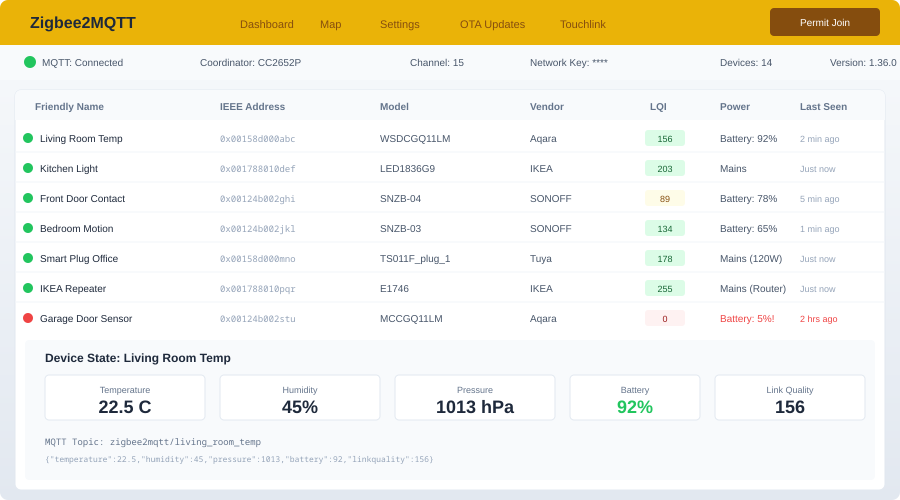
Zigbee2MQTT takes the Zigbee protocol — which is already a local, mesh networking standard — and strips away the proprietary bridges. You plug in a USB Zigbee coordinator, run Zigbee2MQTT in a container, and every Zigbee device in your house communicates over MQTT. No vendor apps, no cloud accounts, no arbitrary device limits. Your Philips Hue bulbs, IKEA blinds, Aqara sensors, and SONOFF switches all show up in the same system.
What You Need
Zigbee Coordinators
The coordinator is the USB dongle that talks to your Zigbee devices. Not all coordinators are equal, and the choice matters more than you might expect.
Recommended coordinators (2026):
| Coordinator | Chip | Price | Range | Notes |
|---|---|---|---|---|
| SONOFF Zigbee 3.0 Plus | CC2652P | ~$15 | Good | Best budget option, widely supported |
| Electrolama zzh! | CC2652R | ~$35 | Good | Open hardware, community favorite |
| SLZB-06 | CC2652P | ~$40 | Great | Ethernet + PoE option, external antenna |
| ConBee II | deCONZ | ~$30 | Good | Well-known, but deCONZ firmware only |
| ConBee III | deCONZ | ~$40 | Good | USB-C, updated firmware |
| SMLight SLZB-07 | EFR32 | ~$45 | Great | Thread + Zigbee, future-proof |
The SONOFF Zigbee 3.0 USB Dongle Plus (the "P" variant with the CC2652P chip, not the older CC2531 version) is the default recommendation. It costs $15, works out of the box with Zigbee2MQTT, and supports over 200 connected devices.
For larger homes or demanding setups, the SLZB-06 connects over Ethernet instead of USB, which eliminates USB extension cable issues and lets you place the coordinator in an optimal location for radio coverage.
Firmware Updates
Most coordinators ship with firmware that works, but updating to the latest coordinator firmware improves stability, range, and device compatibility. Zigbee2MQTT's documentation has firmware flashing instructions for each supported coordinator. For the SONOFF dongle, the process uses the cc2538-bsl Python tool:
# Install the flashing tool
pip install cc2538-bsl

# Flash the latest coordinator firmware
cc2538-bsl -p /dev/ttyUSB0 -evw CC1352P2_CC2652P_launchpad_coordinator_20240315.hex
Always flash firmware before pairing any devices. Reflashing later can require re-pairing everything.
Docker Setup
Zigbee2MQTT runs alongside an MQTT broker (Mosquitto is the standard choice). Here is a Docker Compose setup for both:
# docker-compose.yml
services:
  mosquitto:
    container_name: mosquitto
    image: eclipse-mosquitto:2
    restart: unless-stopped
    ports:
      - "1883:1883"
    volumes:
      - ./mosquitto/config:/mosquitto/config
      - ./mosquitto/data:/mosquitto/data
      - ./mosquitto/log:/mosquitto/log

  zigbee2mqtt:
    container_name: zigbee2mqtt
    image: koenkk/zigbee2mqtt
    restart: unless-stopped
    depends_on:
      - mosquitto
    ports:
      - "8080:8080"
    volumes:
      - ./zigbee2mqtt/data:/app/data
    devices:
      - /dev/ttyUSB0:/dev/ttyACM0
    environment:
      - TZ=America/Los_Angeles
The devices mapping passes the USB coordinator through to the container. The device path (/dev/ttyUSB0) may differ on your system. Find yours with:
# List USB serial devices
ls -la /dev/serial/by-id/

# Example output:
# usb-ITead_Sonoff_Zigbee_3.0_USB_Dongle_Plus_xxxx -> ../../ttyUSB0
Using the /dev/serial/by-id/ path is more reliable than /dev/ttyUSB0 because it won't change if you plug in another USB device.
Mosquitto Configuration
Create a minimal Mosquitto config:
# mosquitto/config/mosquitto.conf
listener 1883
allow_anonymous false
password_file /mosquitto/config/password_file
persistence true
persistence_location /mosquitto/data/
log_dest file /mosquitto/log/mosquitto.log
Create the password file:
docker exec mosquitto mosquitto_passwd -c /mosquitto/config/password_file zigbee2mqtt
# Enter a password when prompted
Zigbee2MQTT Configuration
# zigbee2mqtt/data/configuration.yaml
homeassistant: true
permit_join: false
mqtt:
  base_topic: zigbee2mqtt
  server: mqtt://mosquitto:1883
  user: zigbee2mqtt
  password: your_mqtt_password
serial:
  port: /dev/ttyACM0
  adapter: zstack  # For CC2652-based coordinators
frontend:
  port: 8080
advanced:
  network_key: GENERATE
  pan_id: GENERATE
  channel: 15
  log_level: info
  last_seen: ISO_8601
On first startup, GENERATE will be replaced with random values. These keys and IDs uniquely identify your Zigbee network. Back them up — if you lose them, every device needs to be re-paired.
Setting channel: 15 avoids interference with Wi-Fi channels. Zigbee channels 15, 20, and 25 have the least overlap with common 2.4 GHz Wi-Fi channel configurations.
Pairing Devices
Pairing is straightforward but varies slightly by device.
Enable Pairing Mode
In the Zigbee2MQTT web UI (port 8080), click "Permit join (All)" at the top. This opens a 254-second window during which new devices can join the network. You can also enable it per-device or via MQTT:
# Enable pairing for 120 seconds via MQTT
mosquitto_pub -h localhost -u zigbee2mqtt -P password \
  -t 'zigbee2mqtt/bridge/request/permit_join' \
  -m '{"value": true, "time": 120}'
Put the Device in Pairing Mode
Each device type has a different pairing procedure:
- Aqara sensors: Hold the reset button for 5 seconds until the LED blinks
- IKEA bulbs: Toggle power 6 times (on/off/on/off/on/off), pause after each cycle
- Philips Hue bulbs: Power cycle or use the Hue serial number method
- SONOFF switches: Hold the button for 5+ seconds
- Tuya devices: Hold the button until the LED flashes rapidly
Once paired, the device appears in the Zigbee2MQTT UI with a default friendly name based on its model. Rename it to something meaningful like "kitchen_motion_sensor" — you will use this name in MQTT topics and Home Assistant.
Checking Device Support
Before buying Zigbee devices, check the Zigbee2MQTT supported devices list. It lists over 3,000 devices with detailed compatibility notes. Devices marked as "supported" will expose all features. Devices marked as "experimental" work but may have quirks.
Want more smart home guides? Get guides like this in your inbox — HomeLab Starter delivers one free deep-dive every week.
MQTT Topics
Every Zigbee device publishes its state to an MQTT topic and listens for commands on another. Understanding the topic structure lets you build automations outside of Home Assistant if you want.
State Topics
zigbee2mqtt/kitchen_motion_sensor
Published payload (example for an Aqara motion sensor):
{
  "battery": 98,
  "illuminance": 42,
  "illuminance_lux": 42,
  "linkquality": 156,
  "occupancy": true,
  "temperature": 22.5,
  "voltage": 3045
}
Command Topics
zigbee2mqtt/living_room_light/set
Payload to control a light:
{
  "state": "ON",
  "brightness": 200,
  "color_temp": 350
}
You can interact with any device directly via MQTT from scripts, Node-RED, custom applications, or anything that speaks MQTT. This is the real power of Zigbee2MQTT — your devices are not locked behind a proprietary API.
Home Assistant Integration
If you set homeassistant: true in the Zigbee2MQTT configuration, it automatically publishes Home Assistant MQTT discovery messages. Every paired device appears in Home Assistant as entities without any manual configuration.
Setup Steps
- In Home Assistant, go to Settings > Devices & Services > Add Integration > MQTT
- Enter your Mosquitto broker address, port (1883), and credentials
- All Zigbee2MQTT devices will automatically appear under Devices
Each device creates appropriate entity types. A motion sensor creates a binary sensor and a battery sensor. A light creates a light entity with brightness, color temperature, and color controls. A smart plug creates a switch entity and (if the plug supports it) a power monitoring sensor.
Using Zigbee2MQTT Alongside ZHA
Home Assistant includes a built-in Zigbee integration called ZHA (Zigbee Home Automation). You cannot use the same coordinator with both ZHA and Zigbee2MQTT simultaneously, but you can run both if you have two coordinators on different channels. Most homelab users pick one and stick with it. Zigbee2MQTT tends to support new devices faster and exposes more configuration options. ZHA is simpler to set up and lives entirely within Home Assistant.
Network Optimization
A well-designed Zigbee mesh makes the difference between a rock-solid smart home and one where devices randomly drop offline.
Router Devices
Zigbee devices fall into three categories: coordinators (your USB dongle), routers (mains-powered devices that relay messages), and end devices (battery-powered sensors and remotes that sleep between transmissions).
Every mains-powered Zigbee device — smart plugs, light bulbs, in-wall switches — acts as a router. The more routers you have, the stronger your mesh. A good rule of thumb is one router for every 4-6 end devices, distributed throughout your home.
Coordinator Placement
The coordinator should be:
- Central to your home, not in a corner
- On a USB extension cable (30 cm minimum) away from your server's USB ports and other radio interference
- Away from Wi-Fi routers and other 2.4 GHz devices
- At least 1 meter off the ground
USB 3.0 ports are notorious for generating 2.4 GHz interference. A short USB 2.0 extension cable between the coordinator and the server is the single most effective thing you can do for Zigbee range.
Channel Selection
Zigbee and Wi-Fi share the 2.4 GHz band. The optimal Zigbee channels depend on your Wi-Fi setup:
- Wi-Fi channels 1-4: Use Zigbee channel 25 or 26
- Wi-Fi channels 5-8: Use Zigbee channel 15 or 25
- Wi-Fi channels 9-13: Use Zigbee channel 15 or 20
If you control your Wi-Fi channel assignments, set Wi-Fi to channels 1 and 6 (the classic non-overlapping pair) and Zigbee to channel 25. This provides maximum separation.
Monitoring Network Health
The Zigbee2MQTT web UI includes a network map that visualizes your mesh topology. Check it periodically to identify:
- Devices connected directly to the coordinator that should be routing through closer devices
- Routers with no children (potential dead spots)
- Devices with low link quality (LQI below 50)
If you see devices with poor link quality, add a router device (like a smart plug) between the coordinator and the struggling device. The mesh will reorganize within a few hours.
Troubleshooting Common Issues
Devices not pairing: Make sure permit_join is enabled. Move the device within 2 meters of the coordinator for initial pairing — it can be moved to its final location afterward.
Devices dropping offline: Check the network map for weak links. Add router devices to strengthen the mesh. Ensure the coordinator is on a USB extension cable away from interference.
High latency on commands: This usually indicates a weak mesh. Commands are hopping through too many routers or going through a router with poor signal. Add routers to create shorter paths.
Battery devices reporting infrequently: This is normal behavior. Battery devices sleep aggressively to conserve power. Most sensors report on a fixed interval (every 60 minutes for Aqara sensors) or when a value changes. You cannot make them report more frequently without draining the battery.
Zigbee2MQTT turns what would be a fragmented collection of vendor-specific hubs into a unified, open system. Every device speaks MQTT, every device is controllable from any MQTT client, and no vendor can lock you out of hardware you own.